
Connect in one tap to your preferred location
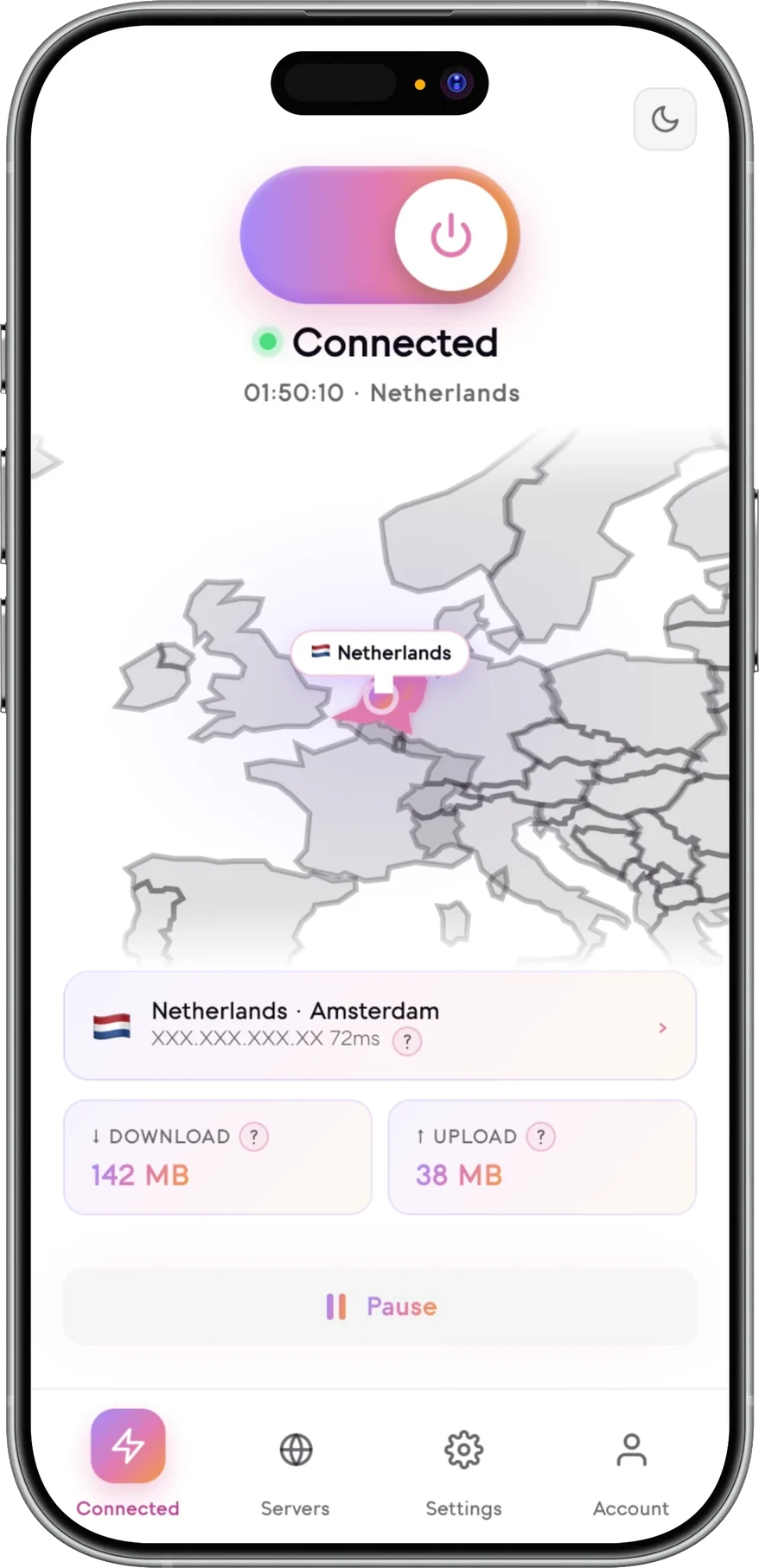
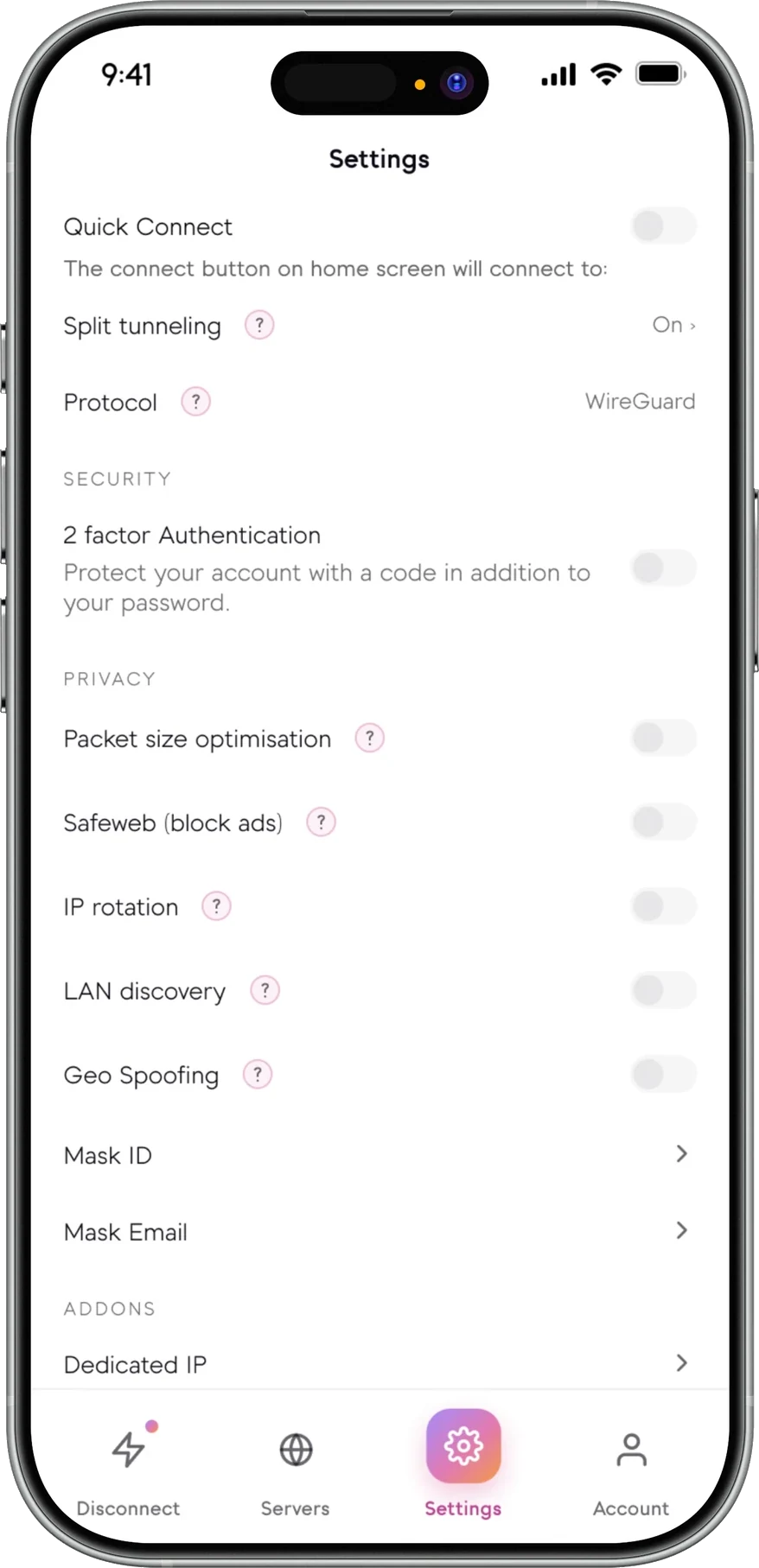
Senton VPN includes a feature called Quick Connect, which will connect you directly to the country or city that you have already picked in the Settings of your application. All you have to do is tap the screen once and you will be connected to your chosen location.
Connection performance may vary depending on your current network, the platform that you are using, and the availability of the Senton VPN servers at the time of your connection attempt.
What is Quick Connect?
Quick Connect is a Senton VPN connection control that lets you connect to the location you have previously selected in Settings, without asking you to browse the country list again.
Your selection of the location to connect to is made once in Settings. After that, all you have to do is tap the screen once to connect to the location that you have selected. This is the main functionality that most people are looking for from a quick connect VPN shortcut.
This feature is also commonly known as Smart Connect, One-Tap Connect, or Fast Connect.
- One-tap VPN connection
- Connects to the location you saved
- No manual search for servers needed
- The connected location is displayed after connecting
- Manual selection of location still available
Quick Connect in the Senton VPN app
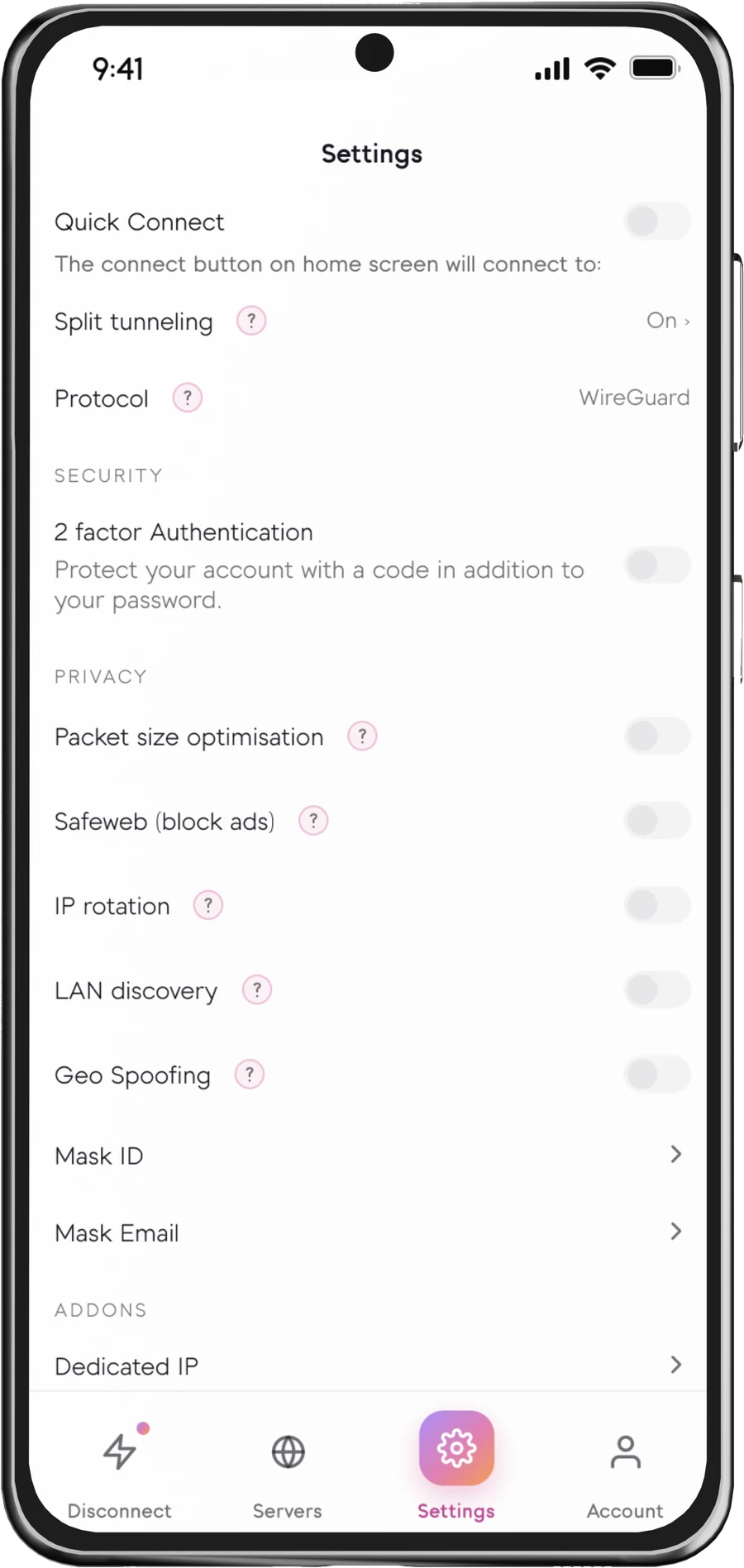
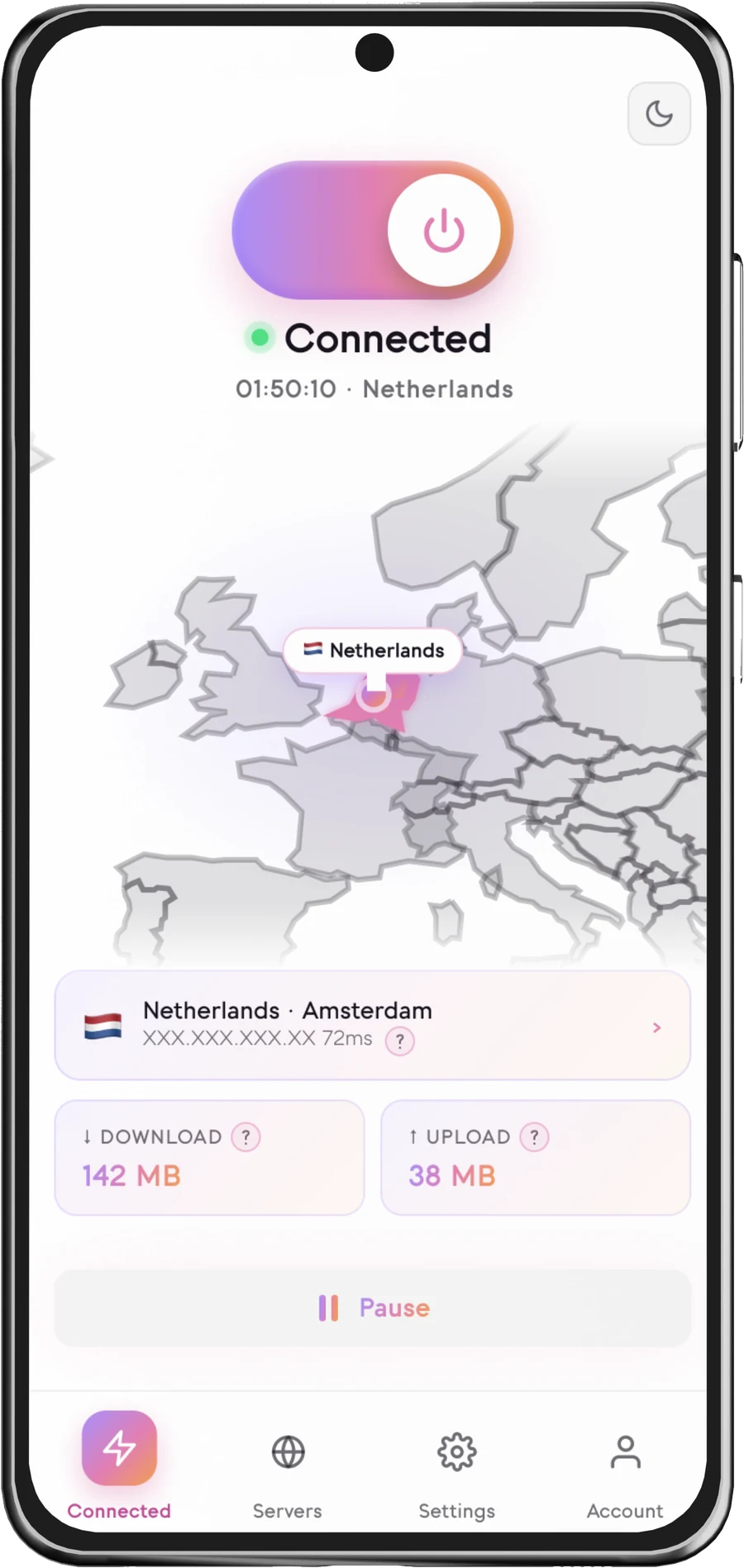
One tap from the main screen, and the server list if you would like to change the location to which Senton VPN connects.
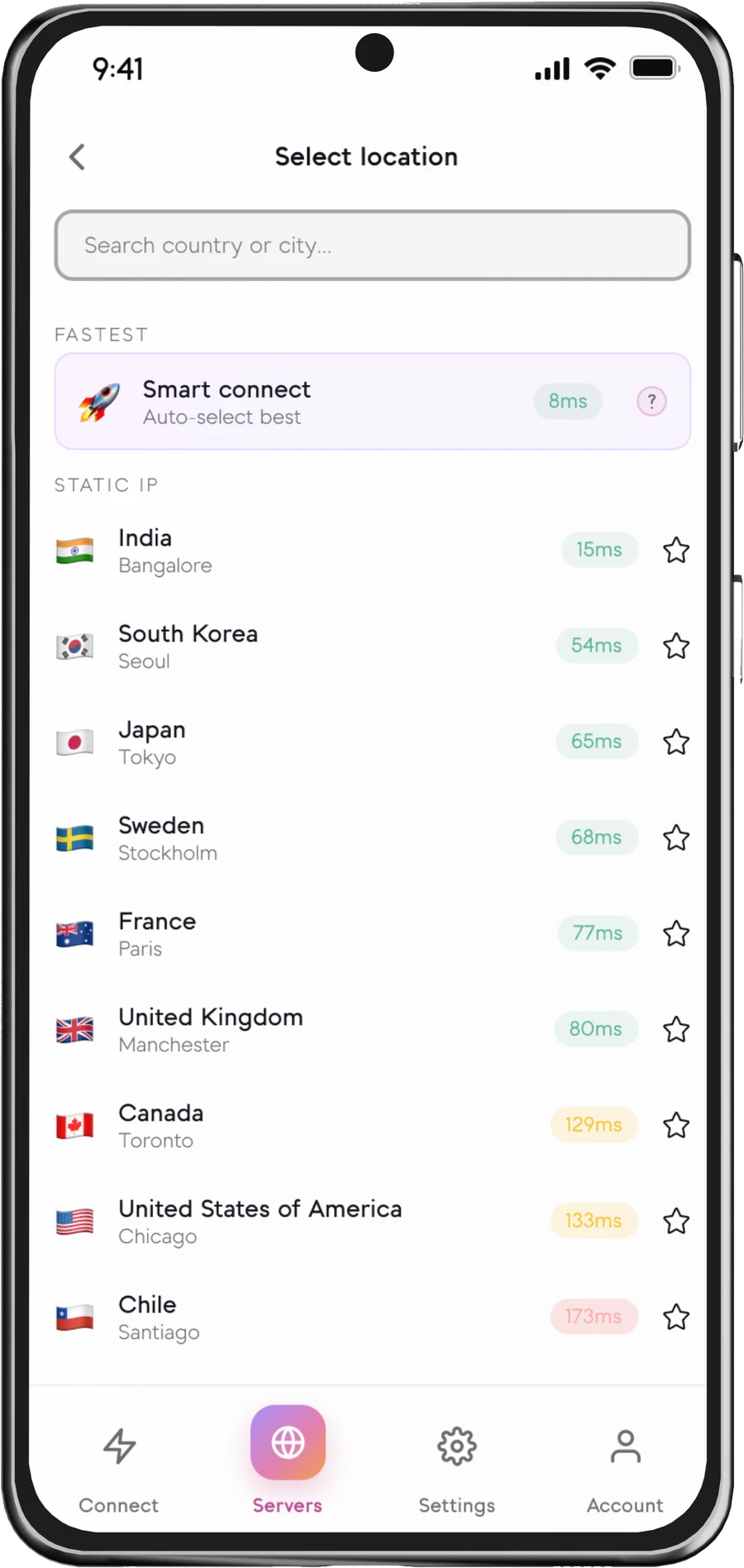
How Quick Connect works
How Senton may choose a connection
The final selection can vary as network and server conditions change. Senton is still confirming exactly which additional signals the selection uses, so this page does not claim distance, latency or load ranking.
Quick Connect or manual location selection?
- One tap to your saved location
- No list to scroll each time
- You always know which country you will get when you connect
- Useful for your everyday connection
- The saved location can be changed whenever you like
- You browse the list and choose your location each time
- Better when a particular region is required
- Useful if you use location-specific features on the platform
- It takes more steps to connect to the location of your choice
- Your location is still subject to availability on Senton servers
Use Quick Connect if you connect to the same region most days. Use manual location selection when the country you need today is a different one.
Why use Quick Connect?
See where you connected
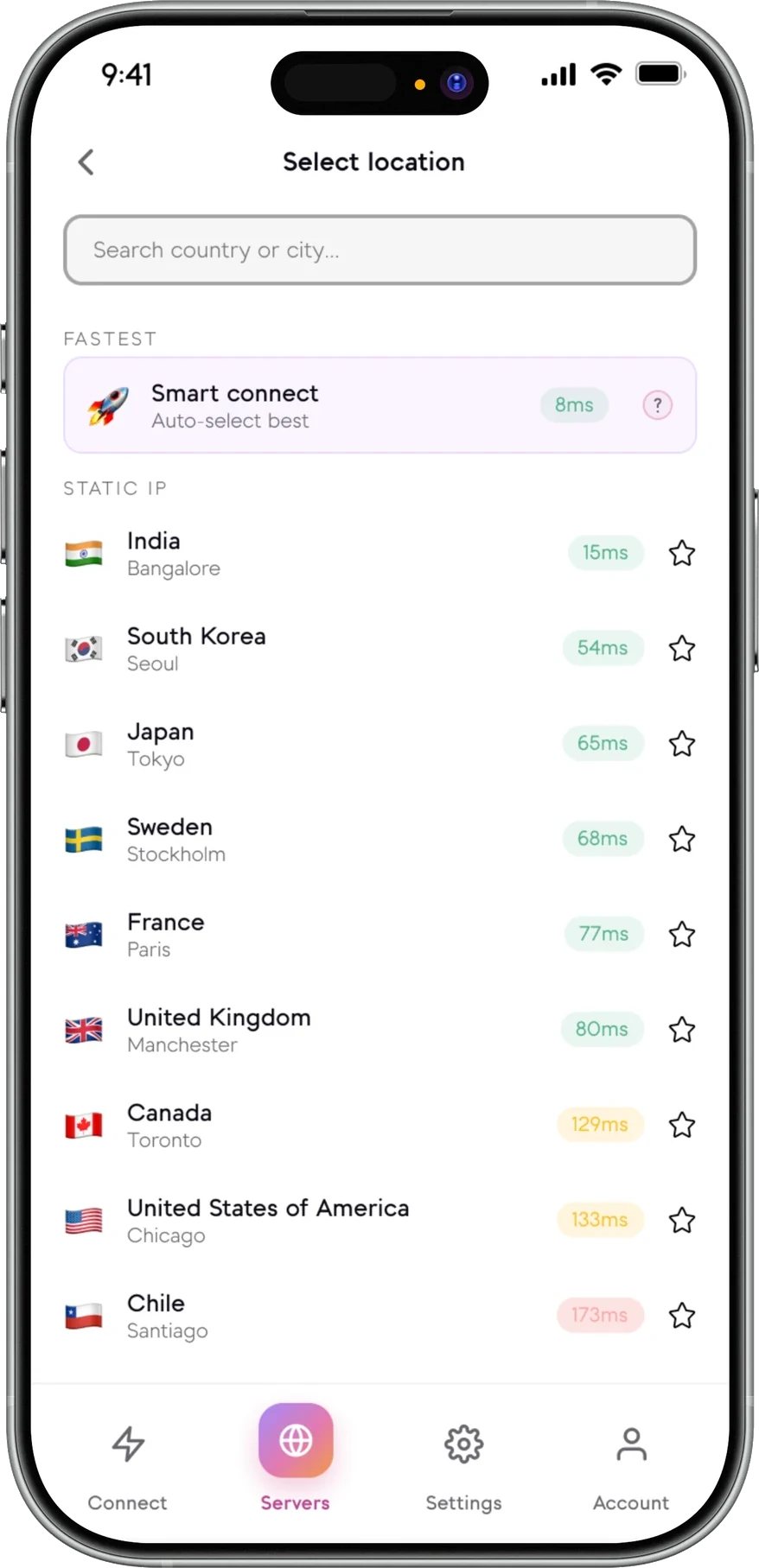
How Quick Connect works with other Senton controls
Quick Connect availability
Quick Connect availability and selection behaviour depend on the current Senton application.
 AndroidSupported
Quick Connect is available on the main screen of your Android device. Your device VPN connection is used, and the active location will be displayed after connecting.
 Chrome extensionSupported
Quick Connect is available inside the Chrome browser, where it is a one click connection rather than a tap. The extension connects the traffic that it handles.
The availability and behaviour of Quick Connect will depend on the current Senton application.
Connect with Quick Connect
If Quick Connect does not connect
Still stuck? Our support team can help you work through it.
Works with other Senton connection controls
Frequently asked questions
Go to the location list in the Senton app and tap the country or city that you would like to connect to. This will be your Quick Connect location until you change it.
No. Quick Connect will connect to the location that you have chosen. If you would like to connect to a different region, change it in the location list and Quick Connect will use the new location as its connection destination.
No. Quick Connect will connect you to the location that you have chosen rather than the fastest server. Actual performance will vary with your network, your device, server distance, congestion and current conditions.
Yes, where manual location selection is available. The location list within the app can be opened and a different supported country or city selected.
No, Quick Connect will always use the same location that you have saved for it until you change the setting yourself.
Quick Connect uses the same system as manual selection of a location for Senton VPN connections. It does not change the underlying VPN protection, but simply how fast you connect.
Check your internet connection, make sure VPN access has permission on your device, close any other VPN applications that might be conflicting with it, check for network restrictions and then try another location. If you are still having problems, contact customer support.
Auto Connect has been switched on in your app. This will start your VPN connection for you so that you do not have to remember to do it yourself. To connect by hand each time, switch Auto Connect off in the Senton app settings.
Connect without searching through every location.
Start your 7-day Senton VPN free trial and use Quick Connect on supported applications.