
Shows Your VPN Location to Supported Websites
Enable Geo-Spoofing in Senton VPN Settings, connect to a VPN location and let websites and services see the virtual country associated with your VPN connection.
On Android, Geo-Spoofing also changes the device location reported to apps — but only after you grant Senton mock-location permission in Android’s developer options, as set out below. It does not change where your device physically is, your time zone or your account country.
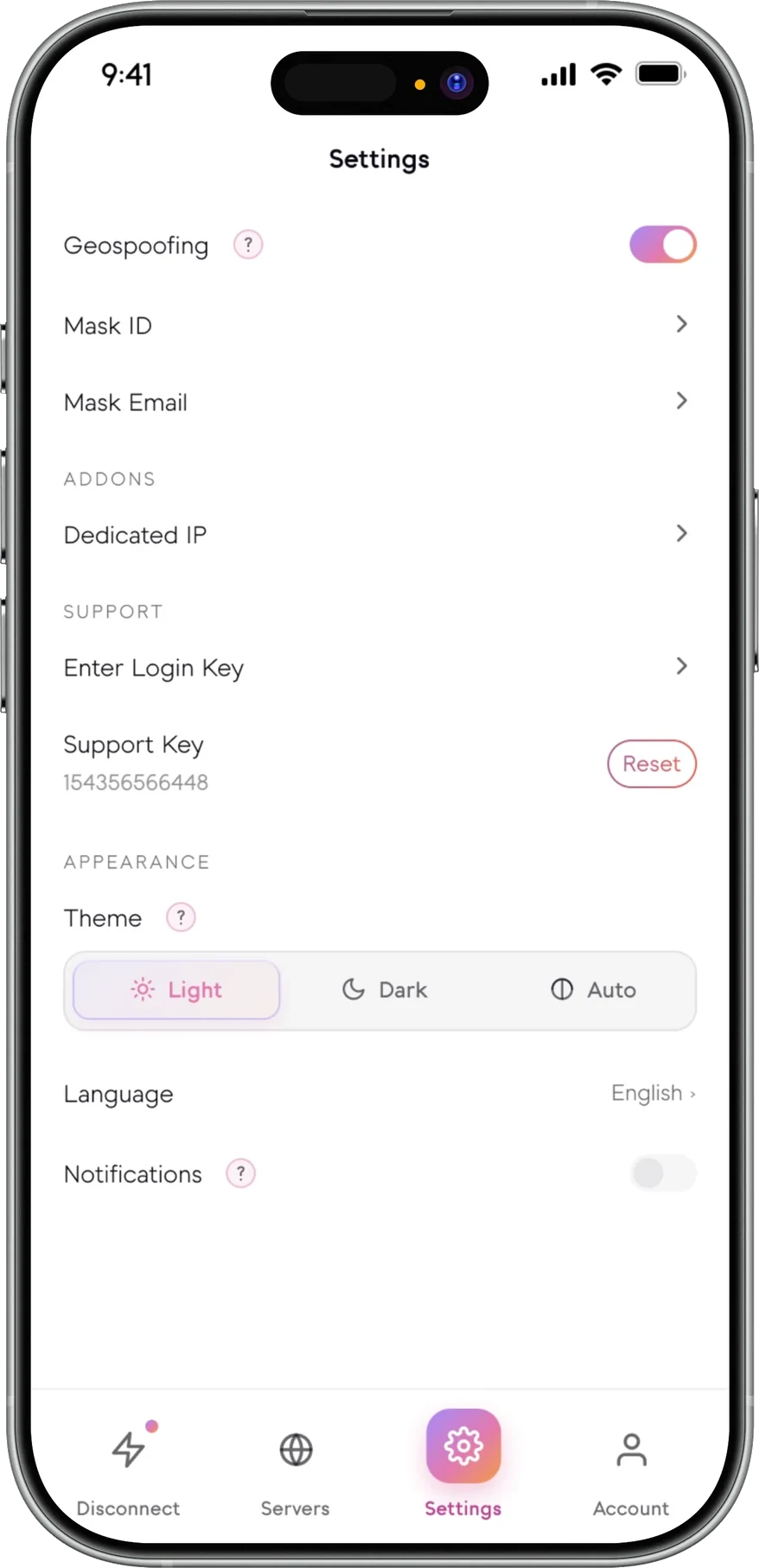
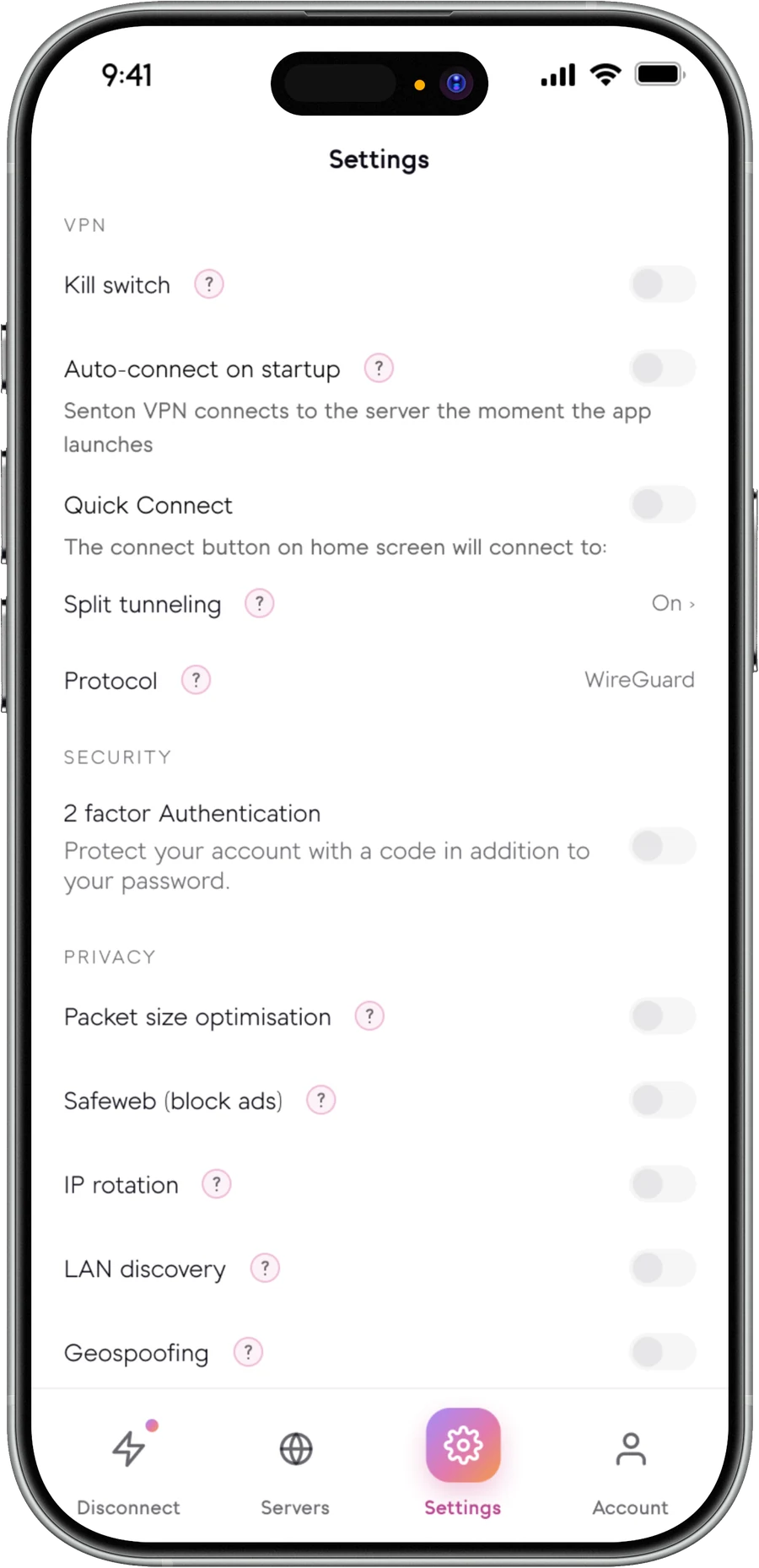
What is Geo-Spoofing?
Geo Spoofing is a Senton VPN feature that helps supported websites and services see the virtual country associated with your active VPN connection. Some people also refer to this feature as a location changer or location spoofer.
Once enabled and connected to a location, the Senton VPN will display the country that is currently represented by the active VPN connection.
Please note that even if the geo spoof feature is enabled, there is no guarantee that all websites & applications will disregard other location signals such as GPS permission, cookies, account settings and device configuration.
- Enabled through VPN Settings
- Activates after connecting to Senton VPN
- Uses the active VPN country
- Displays the virtual country in the application
- Availability depends on the platform and service
Turn on Geo Spoofing in seven steps
This setup applies to the Senton Android application. The Chrome extension covers browser traffic and does not change device location.
Steps 3 to 7 happen in Android's own Settings, not inside Senton. Android requires this permission to be granted by hand — no application can turn it on for you, which is deliberate on Android's part.
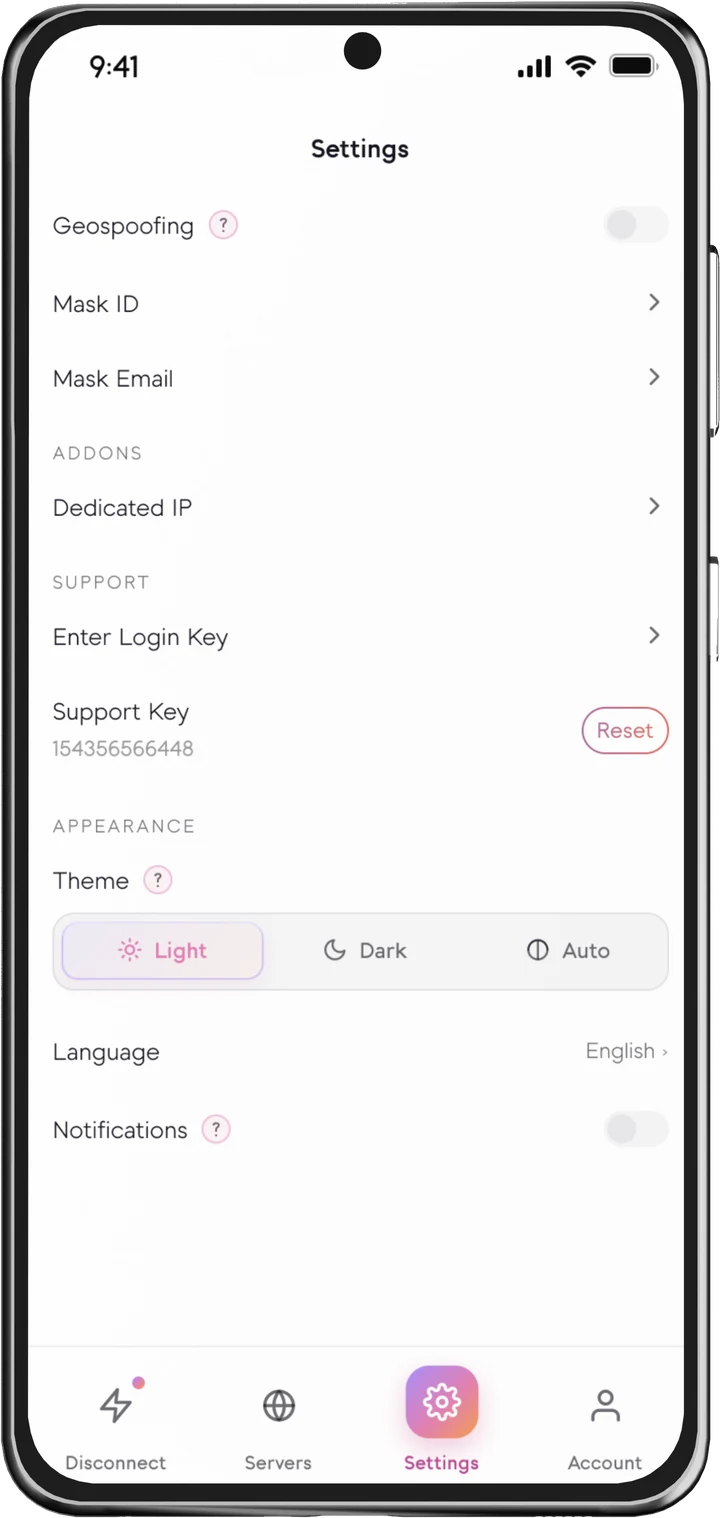
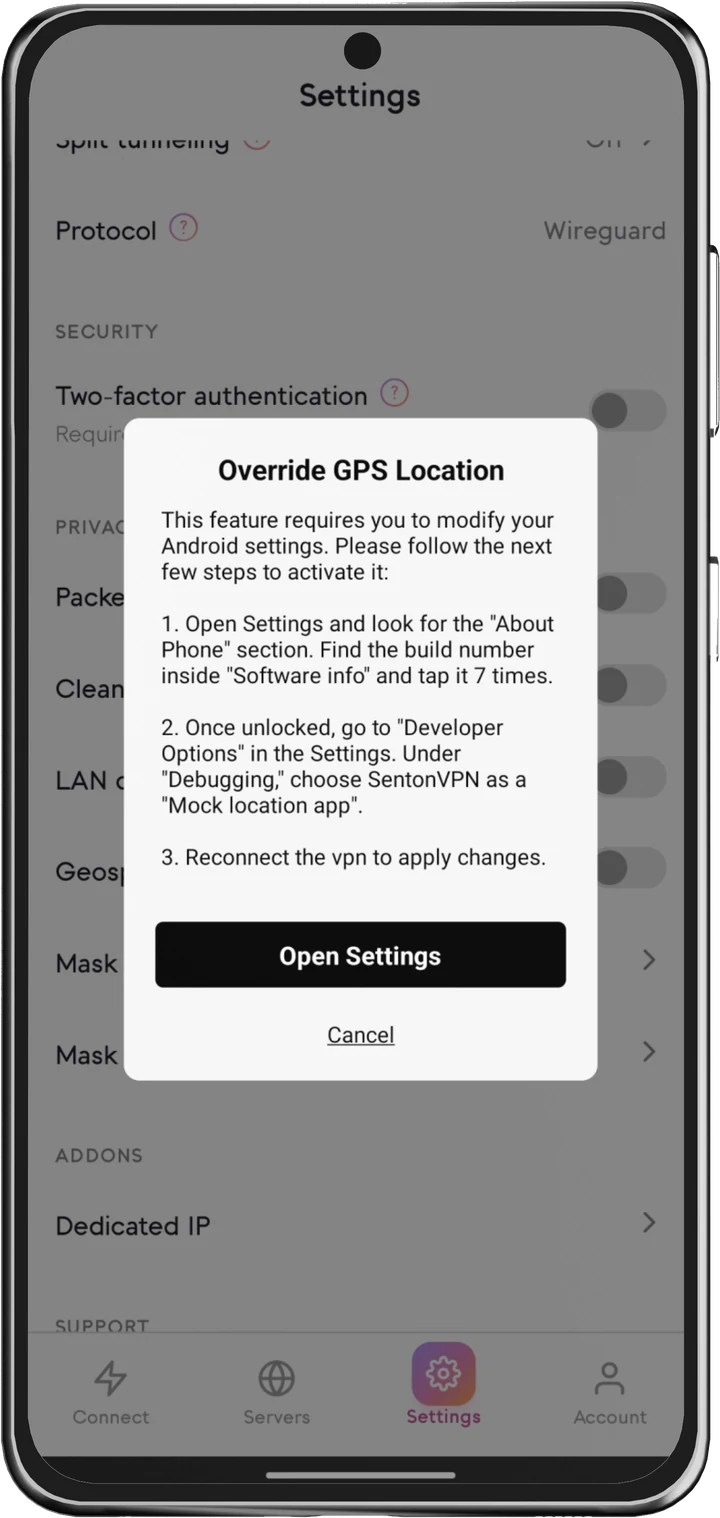
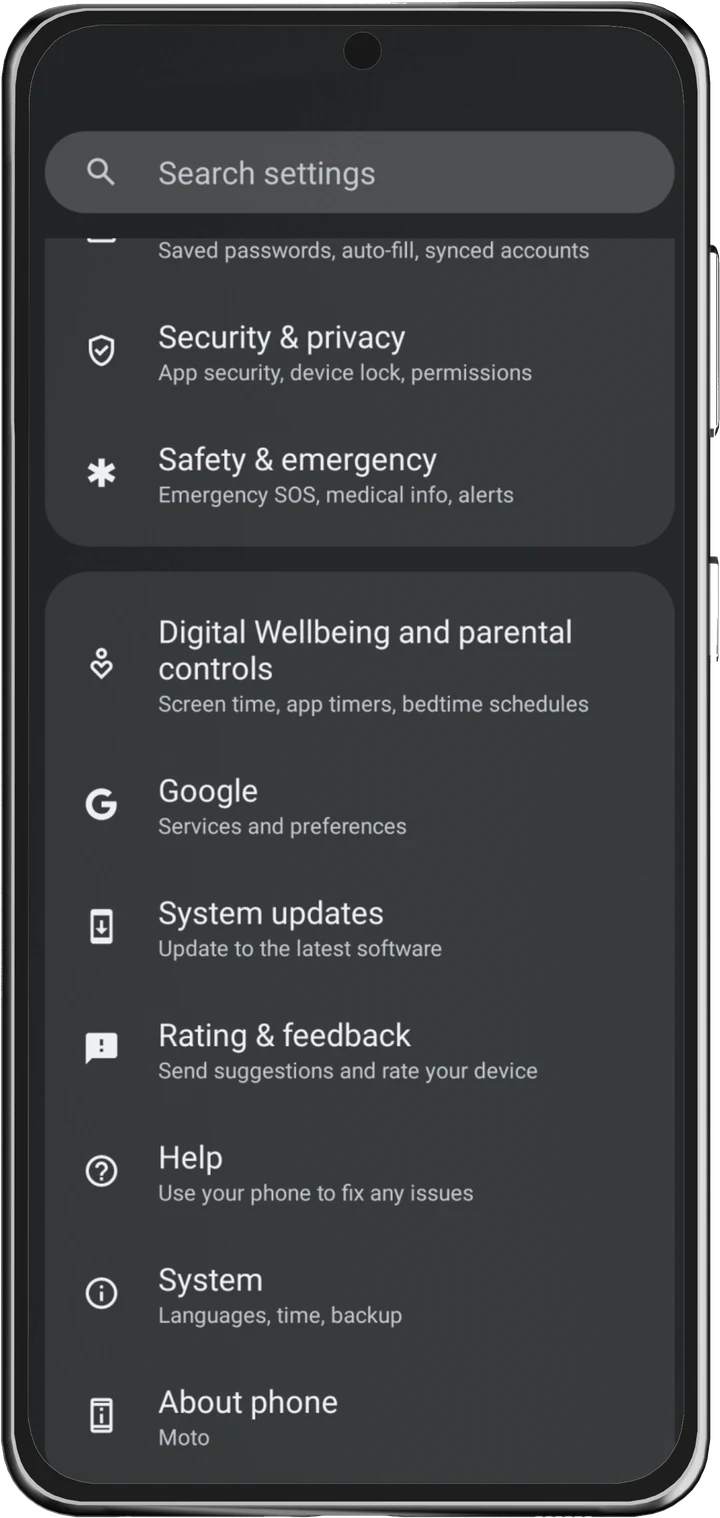
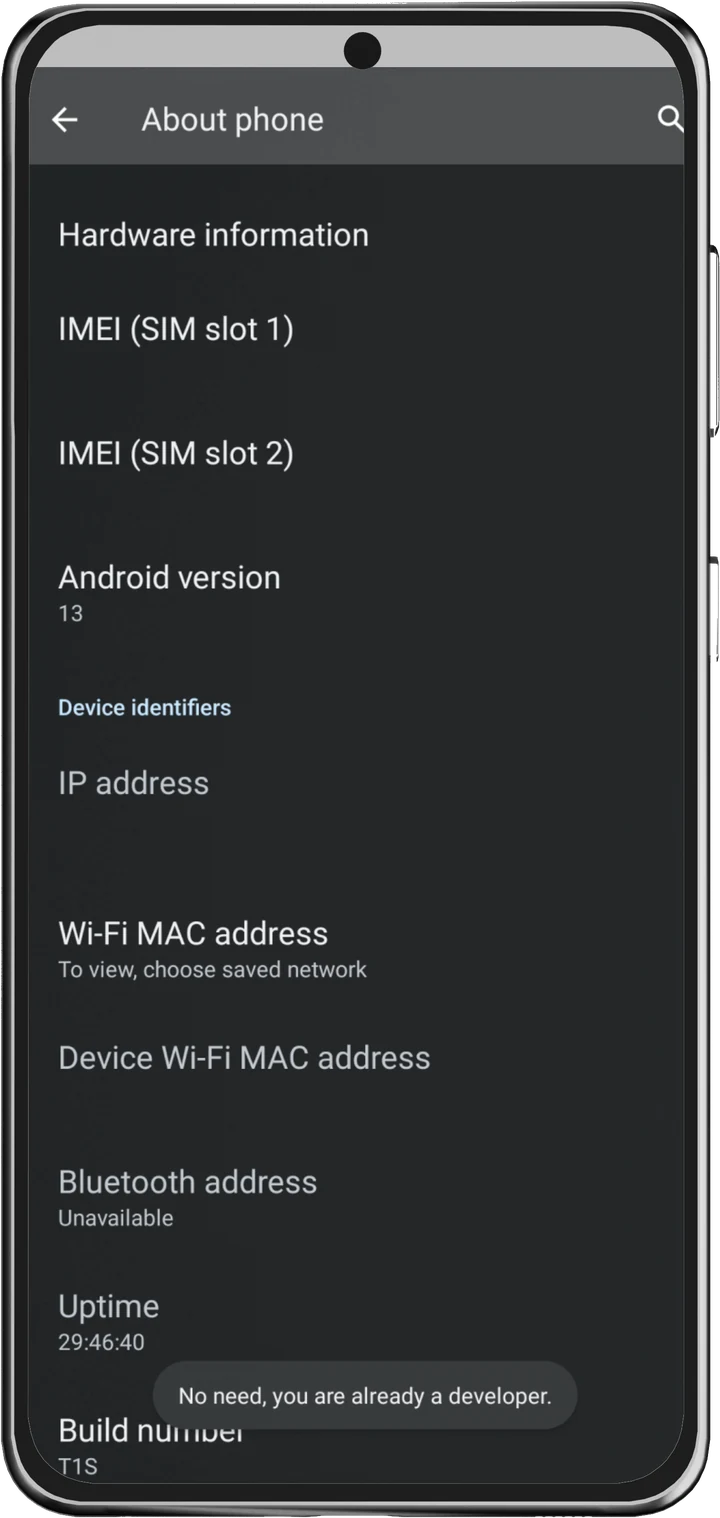
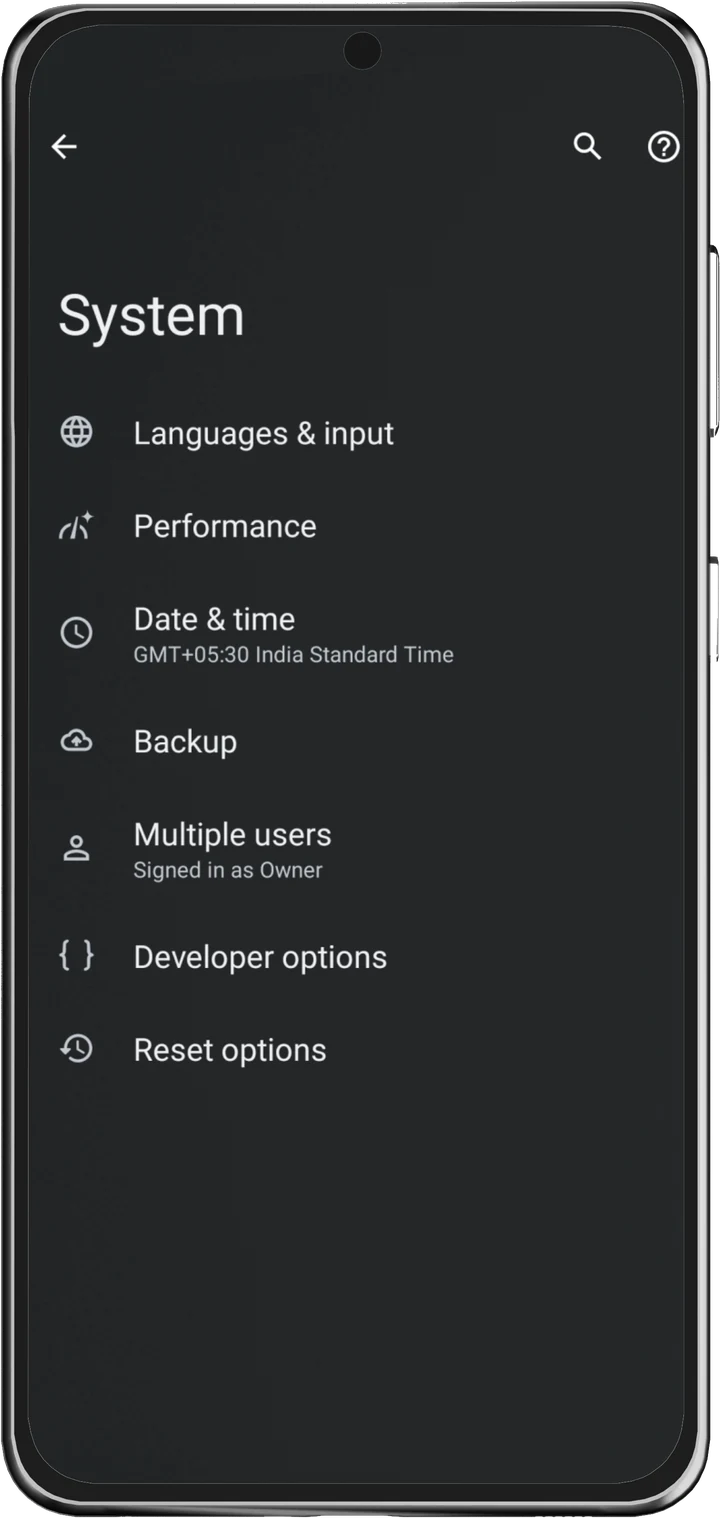
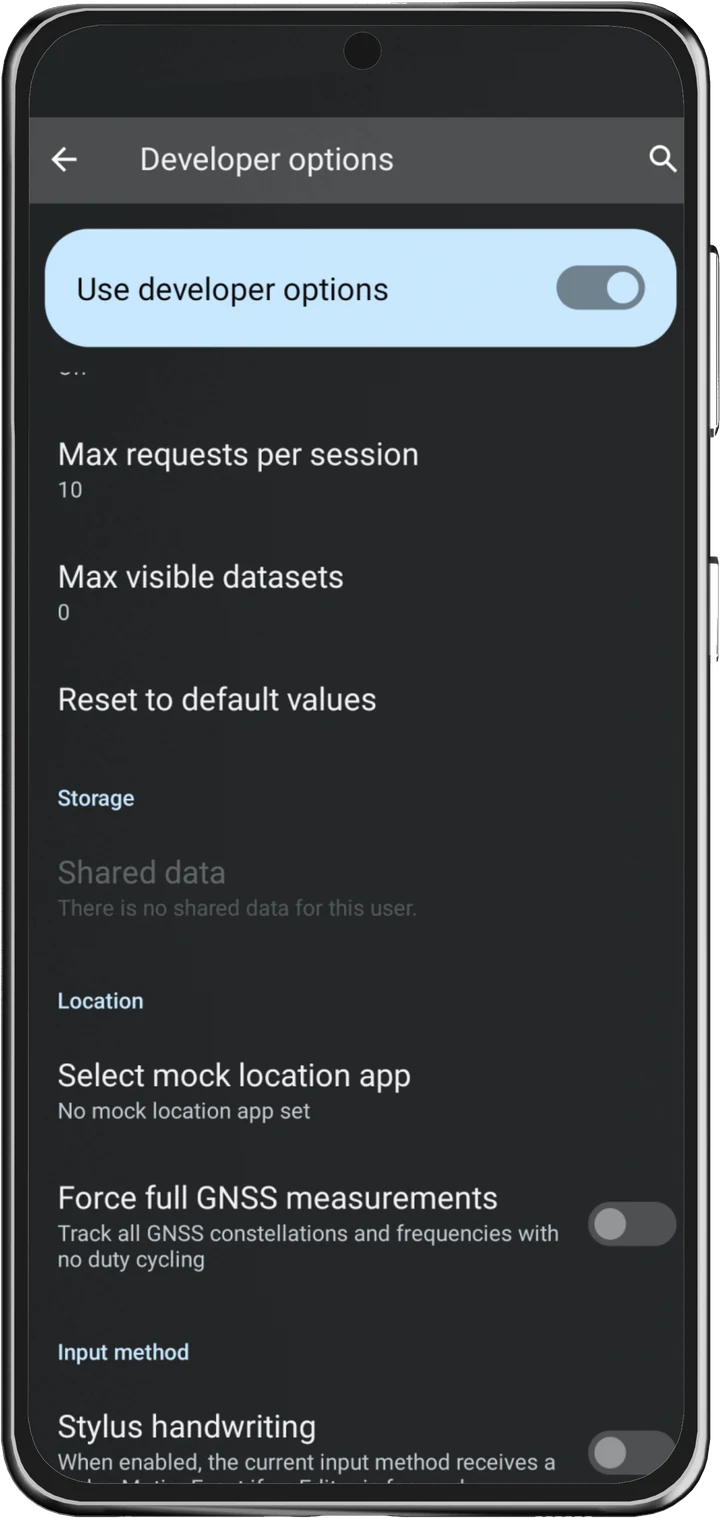
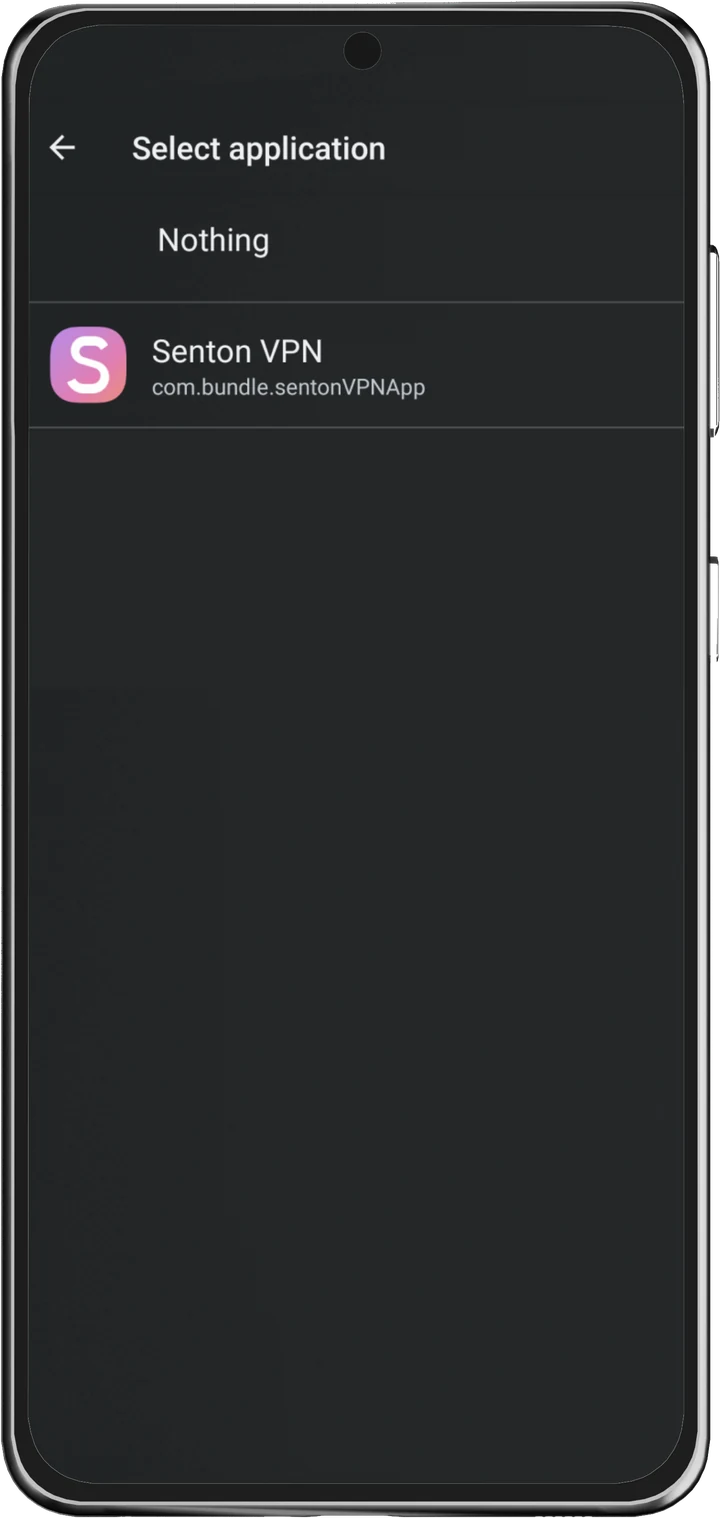
Genuine captures of the Senton Android app and of Android’s own Settings. No product interface is recreated here.
Understand what Geo-Spoofing changes
- Public VPN IP location
- IP-based country detection
- The device location Android reports to apps, on Android with mock-location permission granted
- Regional website defaults where supported
- Country shown by some IP-location services
- Search or content localisation where based on IP
- Your actual physical location — the device does not move
- Browser location permission
- Wi-Fi-based location
- Mobile-network location
- Device time zone
- Device region
- App-store country
- Website account country
- Cookies and saved preferences
- Payment-profile country
The exact result depends on the website, application, permissions and Senton platform implementation.
VPN location and device location are different
One comes from your protected connection; the other comes from the device itself.
- Derived from the active Senton VPN connection
- Based on the VPN exit IP
- Follows the selected VPN location
- Some services may treat the connection as coming from that country
- May come from GPS
- May come from Wi-Fi positioning
- May come from mobile-network data
- May come from operating-system location services or a browser permission
- An app with location permission may still receive device-based location
Where Geo-Spoofing can be useful
Why a website may still show a different location
Still stuck? Our support team can help you narrow down which signal a site is using.
A privacy tool, not a location guarantee
While Geo Spoofing can help change the country attached to your VPN connection, there are other identifying signals that might allow websites and applications to estimate your location. No geo spoofing VPN can guarantee the following:
- Complete anonymity
- A change to where your device physically is
- Access to every regional service
- Acceptance by every website
- Removal of browser fingerprints
- Removal of cookies
- A change to billing or account country
- A change to device region
- A change to app-store location
Users remain responsible for complying with local laws and the terms of the services they use.
Geo-Spoofing availability
Availability and location scope depend on the Senton application and operating environment.
 AndroidSupported
Enable it in Settings → VPN Settings, then connect. On Android, Geo-Spoofing also changes the device location reported to supported apps, not just the country your connection suggests. Follow the setup steps shown in the app.
 Chrome extensionSupported
Available in Chrome. Sites you open in the browser see the country of the extension's VPN connection.
Availability and location scope depend on the Senton application and operating environment.
Your virtual country follows the VPN connection
When Geo Spoofing is enabled, the virtual country that Senton VPN displays for you follows your active, supported VPN connection. Availability of this feature is not guaranteed for every location.
Browse Senton locationsHow Geo-Spoofing works with other Senton features
Explore related privacy and location controls
Frequently asked questions
Geo-Spoofing is a setting inside Senton VPN that helps supported websites and services use the virtual country attached to your active VPN connection. On Android devices, it also changes the device location that installed apps can read.
Open the Senton app, go to Settings, click on VPN Settings, toggle the Geo Spoofing switch on, then connect to the VPN.
On Android, yes. The apps that are supported will be given a device location that matches the country that your VPN connection suggests for you. Both of these will match each other rather than show contradicting information. Some apps will detect that your device location is changing and reject that change. Banking and ride-hailing apps are two of these examples, so this will not work everywhere. The Chrome extension will not affect your computer location, and changes the country for browser traffic only.
There is no separate picker for the country that you would like to use. Instead, you toggle the setting on inside your VPN Settings. The virtual country that will be used will follow the supported VPN location that you connect to.
The best VPN for geo spoofing should change the connection country and the device location together. Changing the IP alone will leave the device location free to show a different location to the spoofed country of the VPN. A geo spoofer or location spoofer will not go that far if it stops at the IP address. The provider should also state plainly what it cannot change. Senton VPN offers Geo Spoofing through its VPN Settings on its supported platforms.
As with most things, the rules of geo spoofing and VPNs will differ from country to country and from service to service. Users must comply with applicable laws and the terms of the applications and websites they use through their VPN.
Not on its own. Geo spoofing will change the country that your internet connection is reported to originate from, but it will not change how your data is carried. Your internet speed and latency will be determined by the location of the VPN server you use, so a distant server feels slower than a nearby one either way.
Yes. Using a VPN will change your network location, but it may not agree with your GPS location. Geo Spoofing also reports a GPS position that matches the country you are connected to through your VPN, wherever your operating system allows it. Supported apps will read this reported position instead of the actual GPS reading.
Let your VPN country speak for your connection.
Start your 7-day Senton VPN free trial and enable Geo Spoofing through VPN Settings on supported applications.