
Stay protected without remembering to connect.
Auto Connect helps keep your privacy uninterrupted. Whenever you open or return to the app after being disconnected, Auto Connect will re-establish a secure connection to your preferred server location.
The specific triggers and background functionality of Auto Connect depend on Senton VPN, your operating system, device permissions, and network conditions.
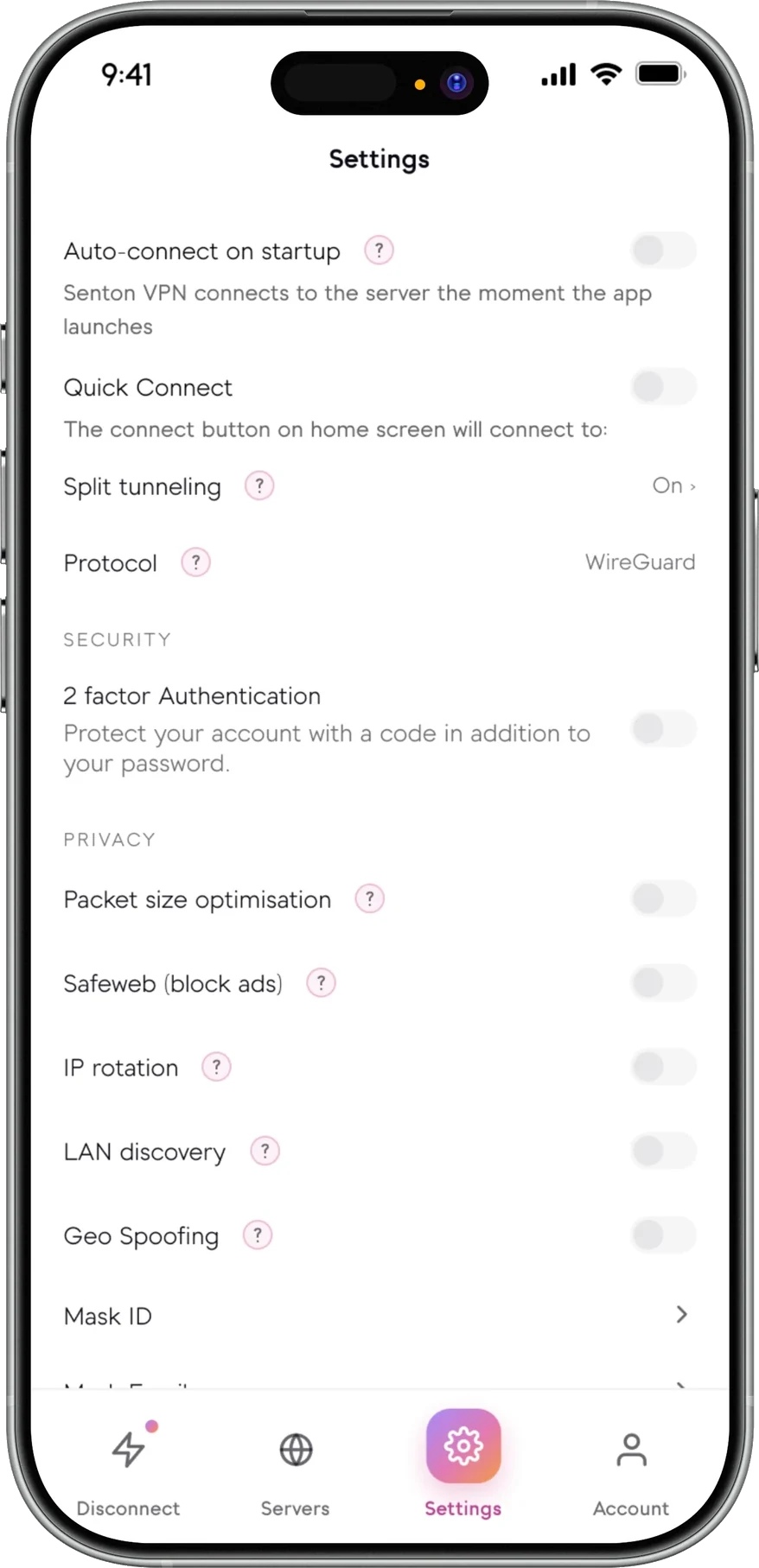
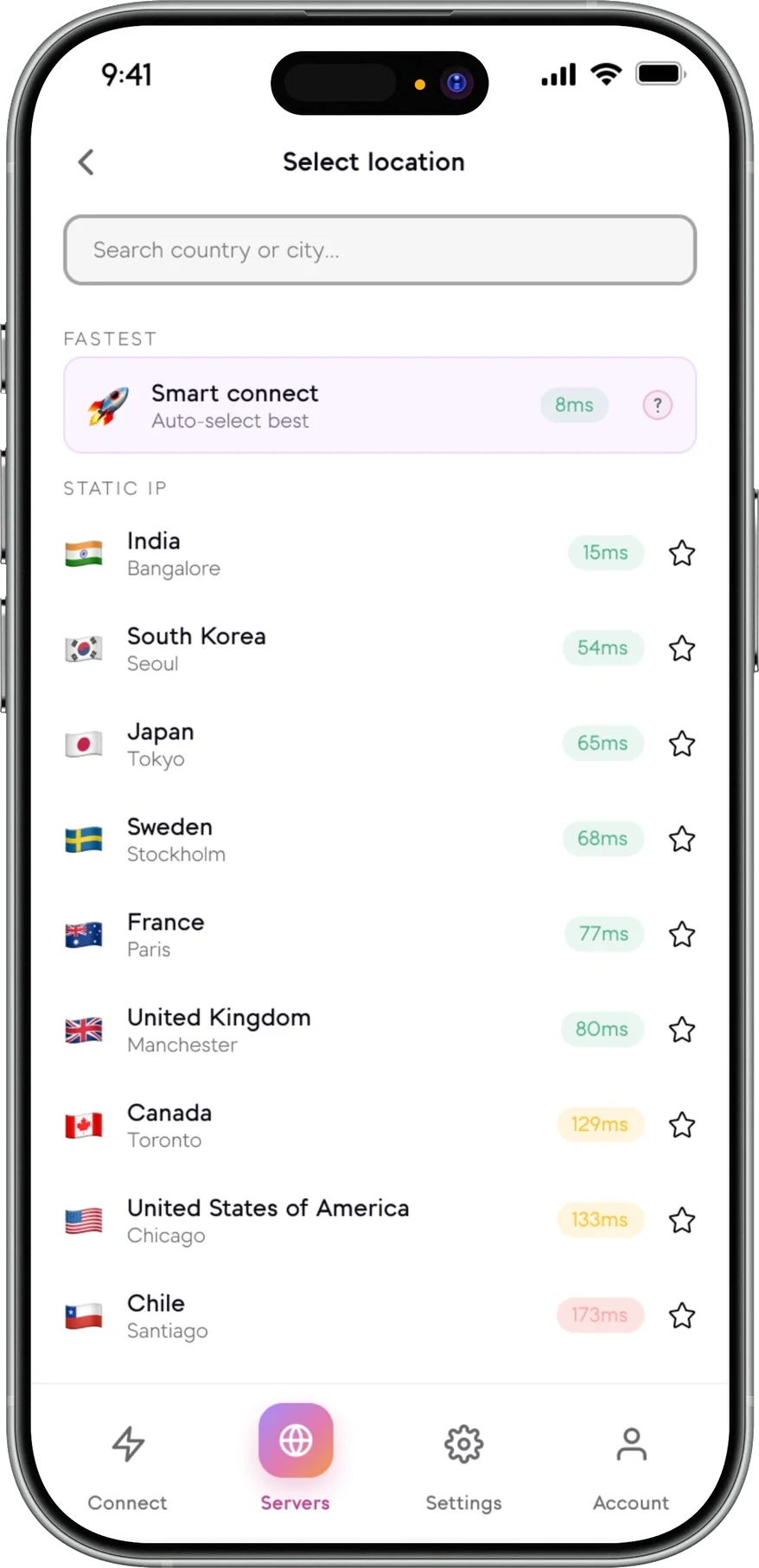
- App launches
Illustration only.
What is Auto Connect?
Auto Connect is a rules-based Senton feature that starts the VPN when any of the selected conditions are met. An auto connect VPN rule removes the step of manually opening the application and tapping the connect button each time.
The feature will restore the secure connection to your chosen server by itself whenever the app is launched or accessed again.
Auto Connect will function within the permissions and background limitations of the device’s operating system.
- Turn on Auto Connect in the application
- Connects automatically on launch or when returning to the app after being disconnected
- Choose the preferred connection where supported
- You can pause or edit this rule at any time
- Check the connection status in the application
Auto Connect in the Senton VPN app
Switch it on, choose where you want to connect and Senton VPN will secure your connection automatically every time you launch the app.
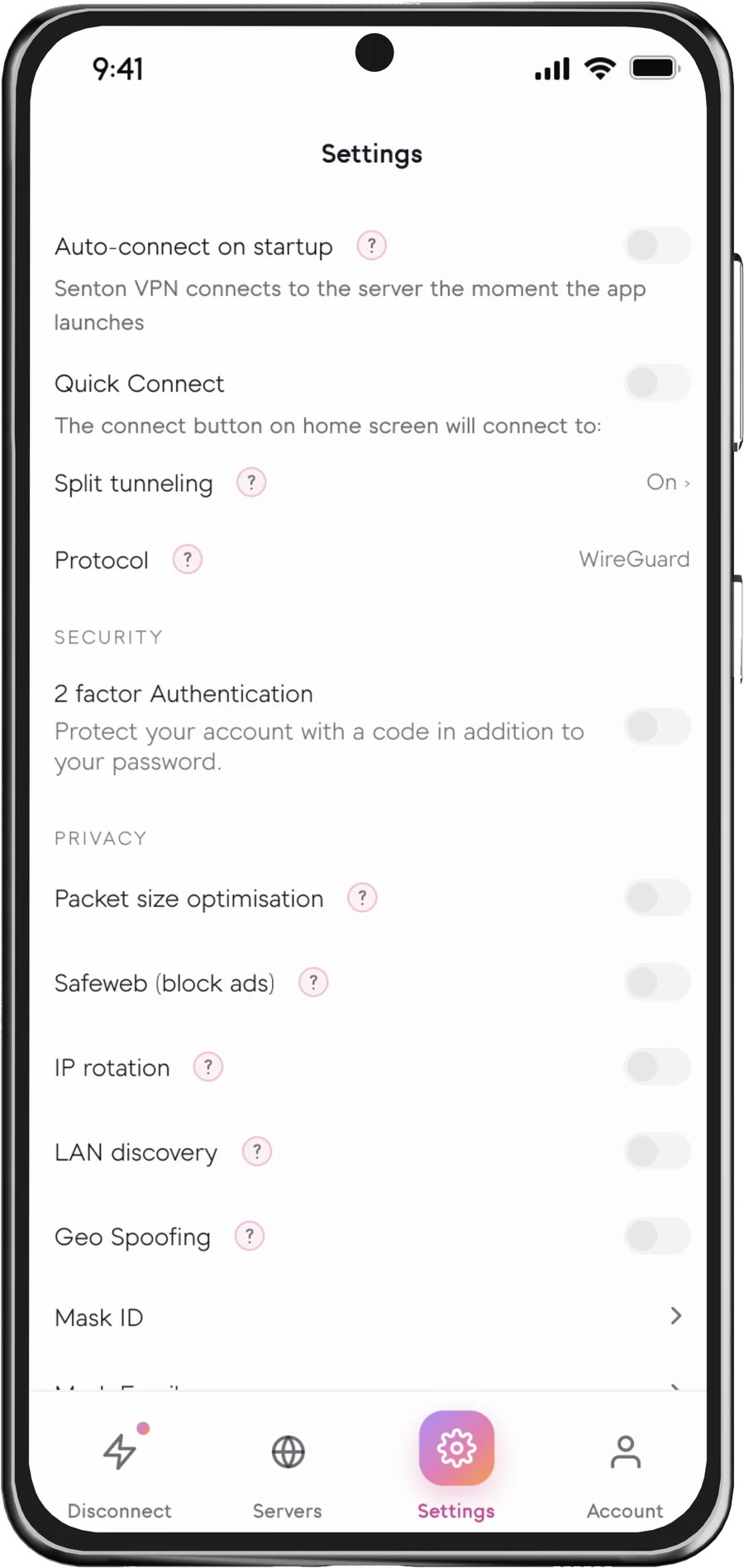
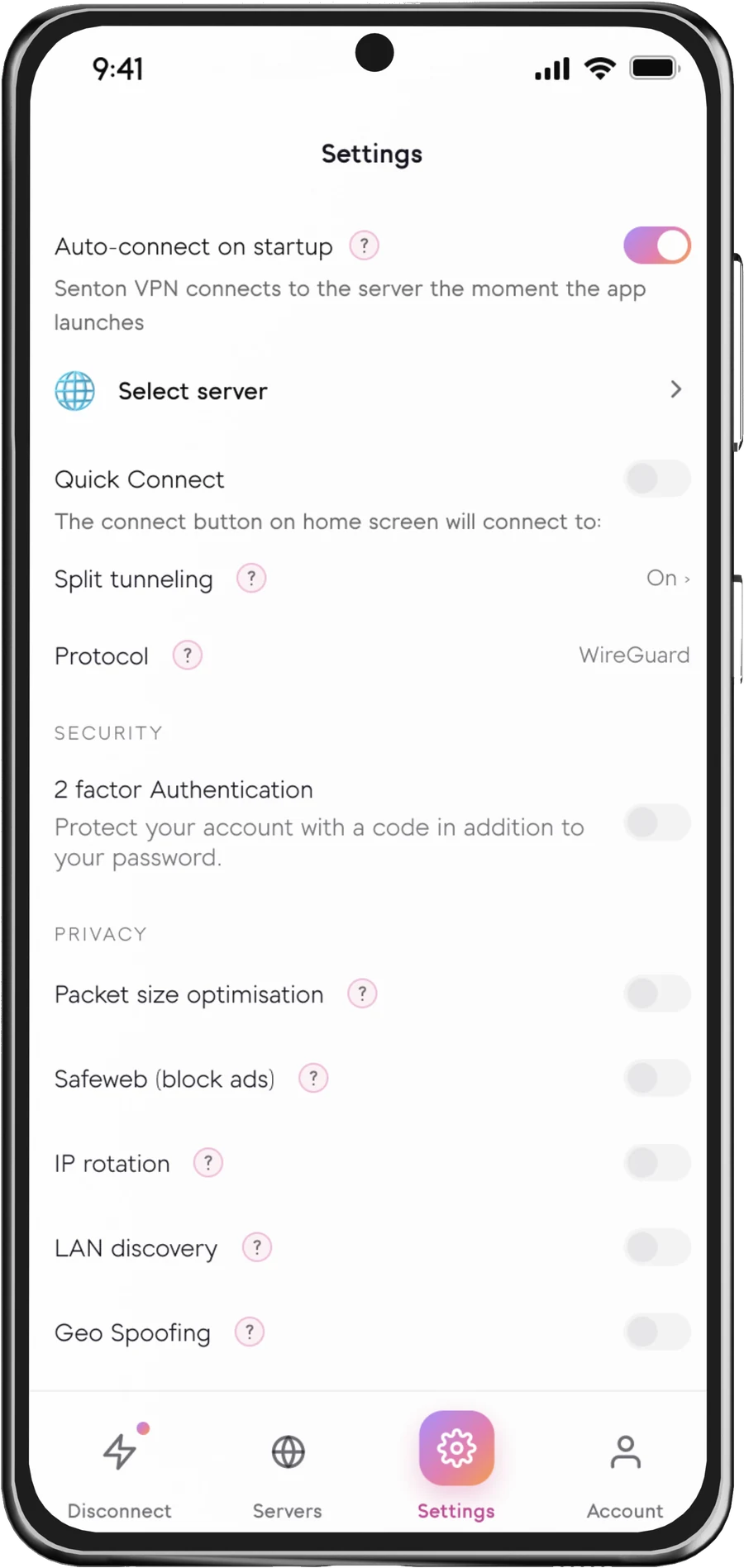
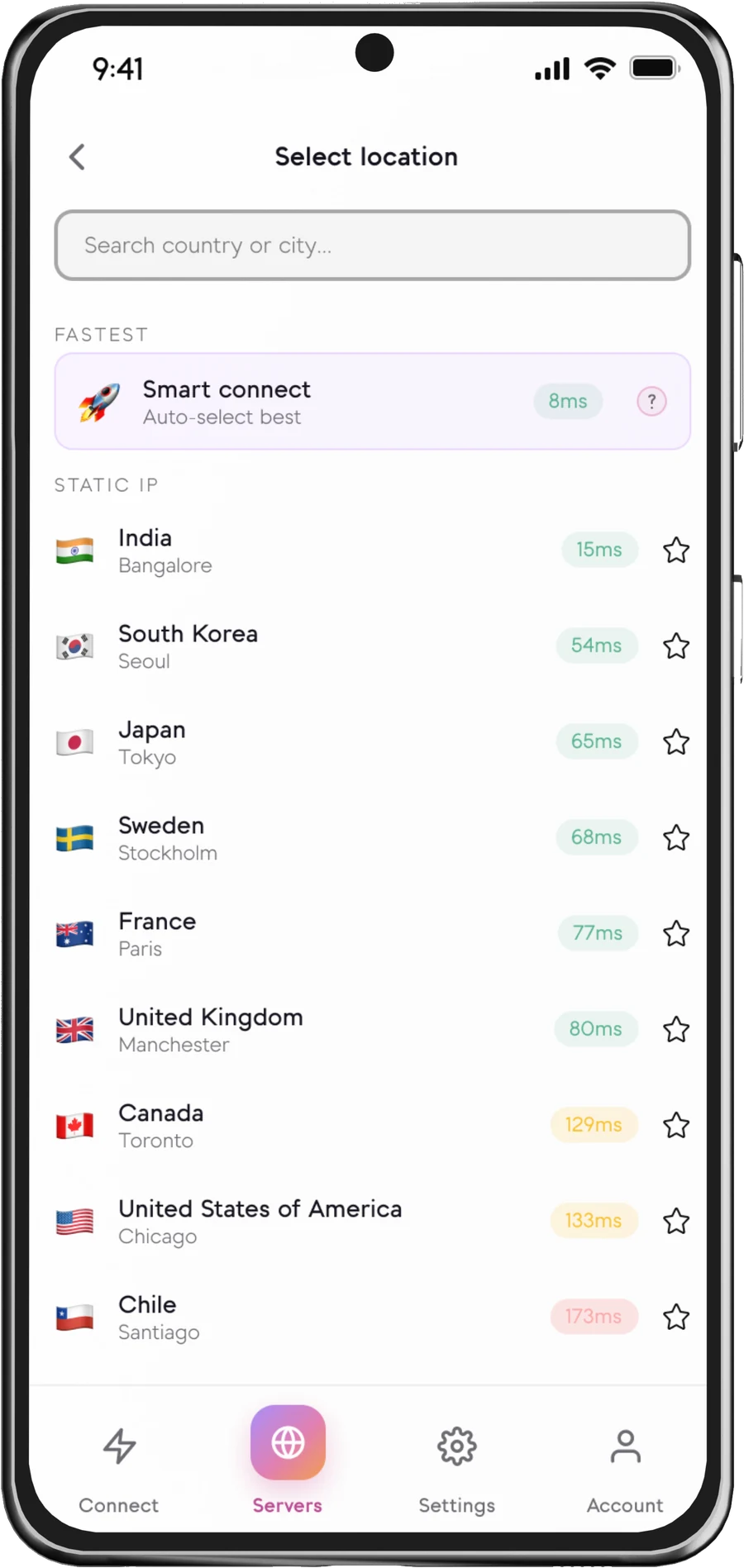
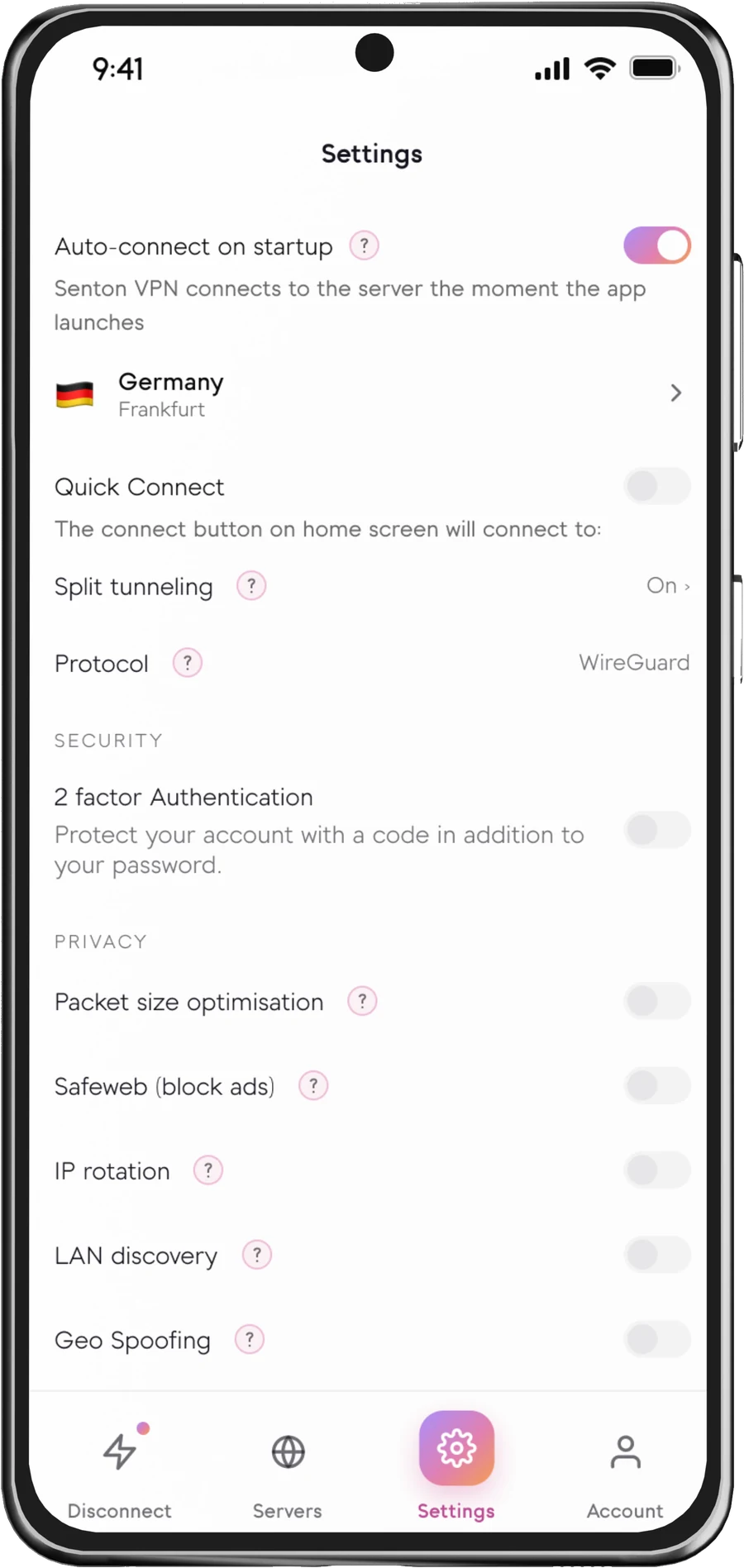
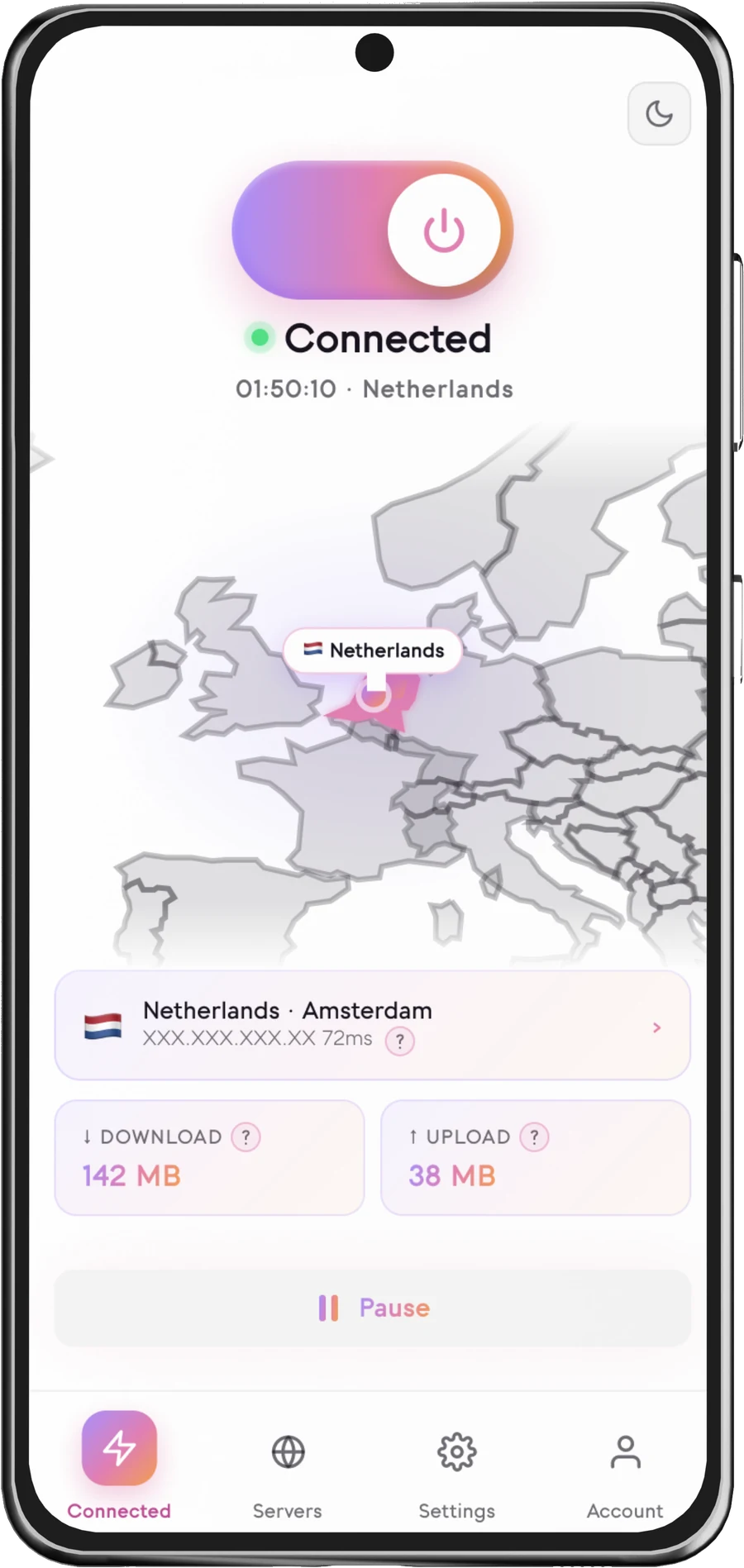
Choose when Senton VPN should connect
For the current Senton app, the setting documented is to connect on app startup. The remaining options are provided here for information purposes and will be noted as available if supported in this app version.
How Auto Connect works
Choose how Auto Connect should connect
If the preferred connection is not achievable, then the next move depends upon the configuration the Senton application is running. Senton has yet to confirm that behaviour, which is why it is not stated on this page.
Auto Connect and related protection controls
- Trigger-based connection
- Configured inside Senton
- Preferred connection can be selected
- Background behaviour depends on the platform
- Set up under Android settings
- Works at system level
- Can include the option to block traffic when there is no active VPN connection in place
- Available on specific versions of Android
- Will not initiate a connection of its own
- Can hold back the supported traffic on the device
- Varies from platform to platform
- Sits beside the connection settings on the device
These are three separate controls. Auto Connect will dictate when the connection should be made, the always on VPN setting for Android will dictate when the chosen VPN is held open and will allow blocking of traffic when there is no active VPN connection in place, and Kill Switch will hold back the traffic that is supported should the connection drop.
Why use Auto Connect?
Auto Connect availability
Available triggers and background behaviour depend on the Senton application and operating system.
 AndroidSupported
Auto-connect on startup is available on the Android app. Background behaviour will still depend on the permission that the VPN is granted and the battery-optimisation settings of the device.
 Chrome extensionSupported
Chrome also offers this feature. The extension will automatically connect for the traffic that it handles.
Available triggers and background behaviour depend on the Senton application and operating system.
Set up Auto Connect
Why Auto Connect may not start
Still stuck? Our support team can help you work through it.
How Auto Connect works with other Senton controls
Works with other Senton connection controls
Frequently asked questions
For the current Senton VPN app, the following is confirmed: connect on app startup. Other options such as auto connect after device restart have not been confirmed.
No. Auto Connect enables the start of a VPN connection. Kill Switch controls the supported internet traffic when the VPN connection is dropped. These options serve different functions but can be used in conjunction.
Auto connect after device restart cannot be specifically confirmed for the current Senton VPN app. This would rely on permissions granted by the operating system. Auto connect on app open is confirmed.
Where supported, Auto Connect can be paired with Quick Connect or with a location you select yourself.
Common causes of this problem include a missing VPN permission, battery-optimisation restrictions, no internet connection, another active VPN, or the application having been force-closed.
Yes. Auto Connect is available in the Chrome extension and will automatically connect the traffic that the extension handles as soon as the Chrome browser is running.
Yes. Auto Connect can be turned off or changed in the Senton VPN settings whenever you want to connect manually.
Let Auto Connect manage the connection.
Set your connection rules once and let Senton VPN connect when supported conditions are met.