
Your character will freeze for a brief moment then teleport across the map. During a work call your voice will become robotic. However a speed test will reveal that you have fast internet. This is usually due to packet loss and is not usually picked up during a standard speed test. In this guide we will look at what packet loss is, how to determine the location of packet loss and solutions that actually work. We also tested our own internet connection for one hour.
What is packet loss?
All data sent over the internet is broken into small chunks of data known as packets. Each packet is sent individually across a path of routers from your end to a server and then all the data is reassembled at the server end. Packet loss refers to the percentage of packets which are dropped during this process. For example if 2 out of 100 packets are dropped this would be 2% packet loss.
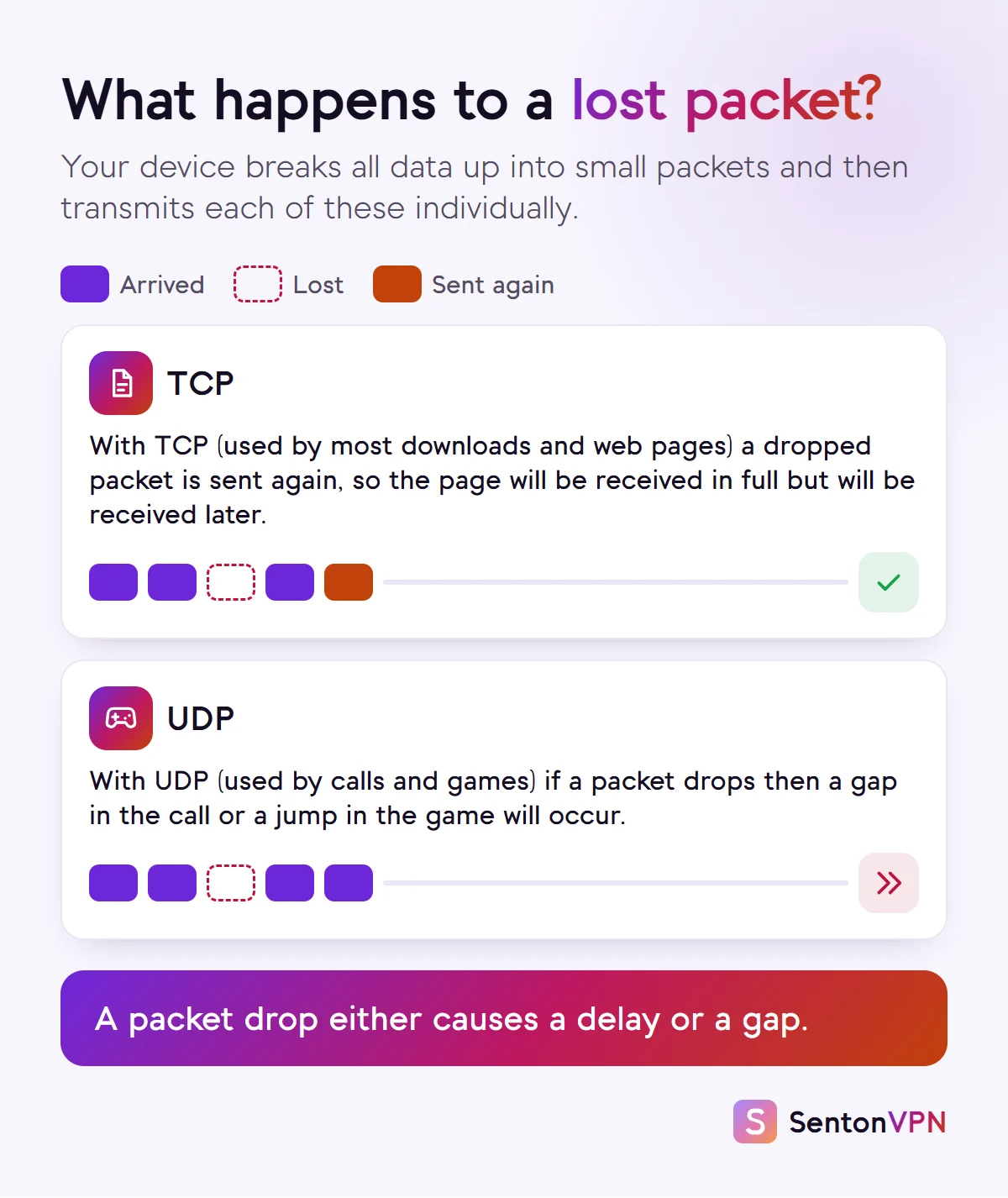
From here the behaviour of the service will vary. For email, downloads and web pages the protocol used is TCP. With TCP a missing packet is detected and a request is made to retransmit the missing packet. All data is received but performance will be affected by the time required to request and receive the packet. For real time communication such as live video, voice and games the protocol used is often UDP. With UDP no request is made for a missing packet. A late arriving packet in the case of games is ignored and a gap in action will be observed.
How much packet loss is normal?
There is no set value. Instead, real-time service providers set their own values. Zoom suggests 2% or less of packet loss for video conferences and calls. Riot Games suggests as close to 0% packet loss for their games. We use these values as a guide.
0%
Perfect connection. This is what a good connection usually shows.
Under 1%
You probably won't notice during video streaming or webpage navigation. However, fast games may suffer intermittent lag.
1 to 2%
Calls and games may start to suffer from this level. It is still within Zoom's suggested values.
Over 2%
Calls will start to suffer from choppy audio, and games and page loads will lag. It is time to determine the issue.

What causes packet loss?
Weak or crowded Wi-Fi
Walls, distance, and other devices on the same frequency can cause packet loss. Microsoft also notes that the 2.4 GHz band is often affected by other household devices.
A full connection
This occurs when there is a large amount of data being uploaded or downloaded over your connection. This can cause traffic buildup within your router and cause packets to be dropped. This is known as bufferbloat.
Bad cables or hardware
A loose cable, an outdated router, or a bad Ethernet cable can also cause packets to be dropped and rejected.
Old firmware or drivers
A flaw in a network adapter driver or a router's firmware may also cause packet loss.
Problems on the route
A congested or faulty link at your internet service provider, or at a network it passes traffic to, often shows up during peak evening hours.
Packets that are too big
If a packet is larger than what a segment of the connection can support and cannot be split, then it will never make it.
The server itself
If a server for a game or service is overloaded then packets will be dropped. This will not be fixed by any changes made at the user's end.
Packet loss vs ping vs jitter
These are frequently confused. A test may show a high speed but there may still be packet loss. Speed tests test the volume of data that makes it through the connection, not the quality. A good ping with packet loss is common too, as some packets will return quickly while others will not return at all.
- What it means
- The time taken for a round trip in milliseconds.
- What you notice
- Lag
- What it means
- The variation in ping between packets.
- What you notice
- Stuttering in video or sound
- What it means
- The percentage of packets that fail to make it through the connection.
- What you notice
- Skips, robot voices, freezing and web pages that hang
- What it means
- The amount of data that can pass through per second.
- What you notice
- Blurred video and slow downloads
| Measure | What it means | What you notice |
|---|---|---|
| Latency (ping) | The time taken for a round trip in milliseconds. | Lag |
| Jitter | The variation in ping between packets. | Stuttering in video or sound |
| Packet loss | The percentage of packets that fail to make it through the connection. | Skips, robot voices, freezing and web pages that hang |
| Speed (bandwidth) | The amount of data that can pass through per second. | Blurred video and slow downloads |
How to check for packet loss
Packet loss can be detected without any additional software. All computers contain a ping utility.
- 1WindowsUse the command prompt and type: ping -n 100 1.1.1.1. The bottom of the output will display the number of packets sent and the number that failed to make it through. The pathping utility also displays packet loss between each router on the route. It will send 100 pings to each router on the path. This can take a few minutes to complete.
- 2Mac or LinuxUse the terminal and type: ping -c 100 1.1.1.1
- 3XboxGo to Settings > General > Network settings and then Test network speed and statistics.
Is it your Wi-Fi or your internet provider?
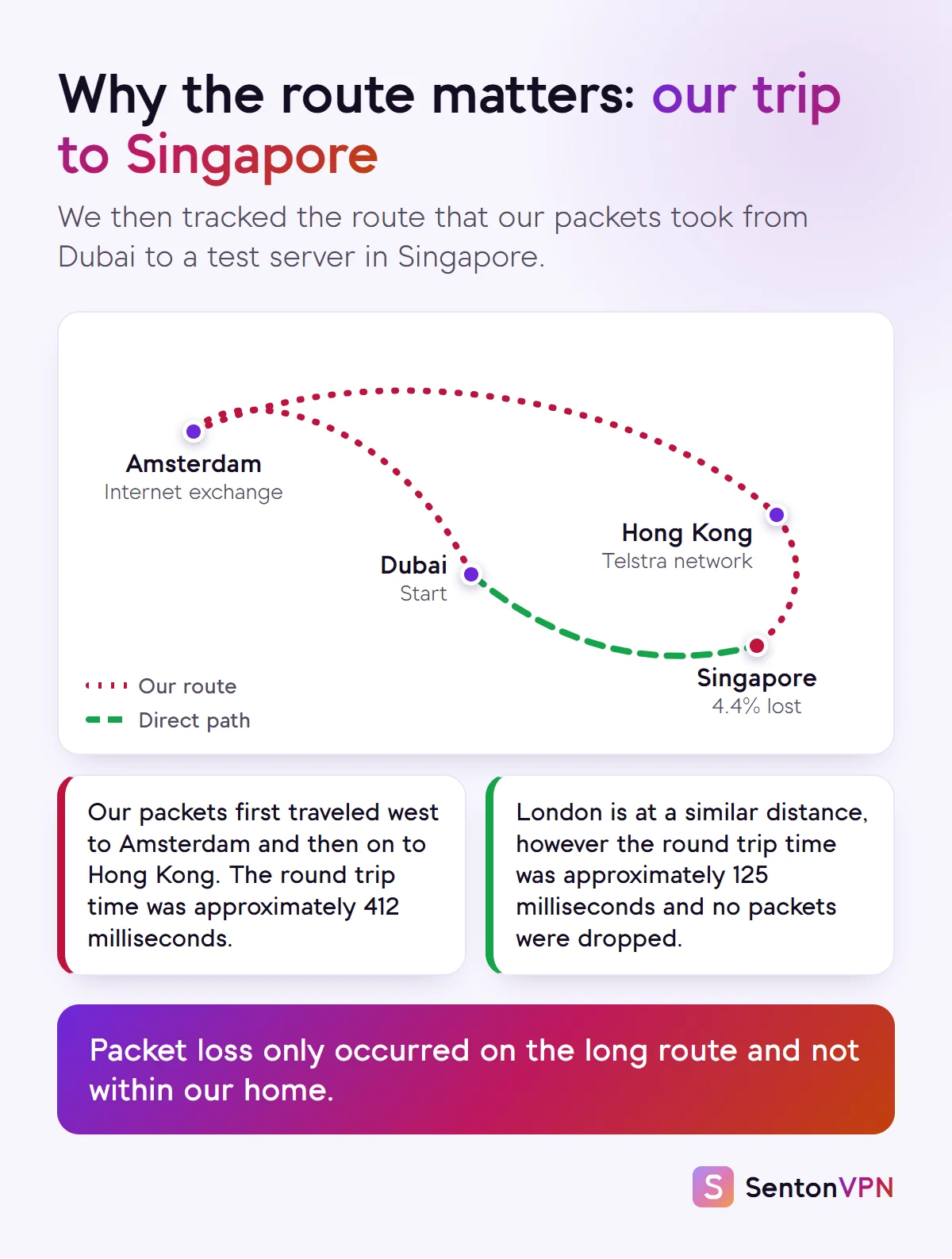
The most expedient method of identifying the origin of packet loss is to perform two pings simultaneously. One to your own router (typically one of 192.168.0.1 or 192.168.1.1) and this should also be your default gateway from your network settings. The other to some server on the internet. Then pose the following questions to yourself.
- Is packet loss occurring en route to my own router?
- Does packet loss cease when a cable is connected?
- Is packet loss only occurring during upload, download or live streaming?
- Is packet loss only occurring at certain times (for example evening)?
- Is packet loss occurring to all websites and games or just one server?
We tested our own connection for an hour
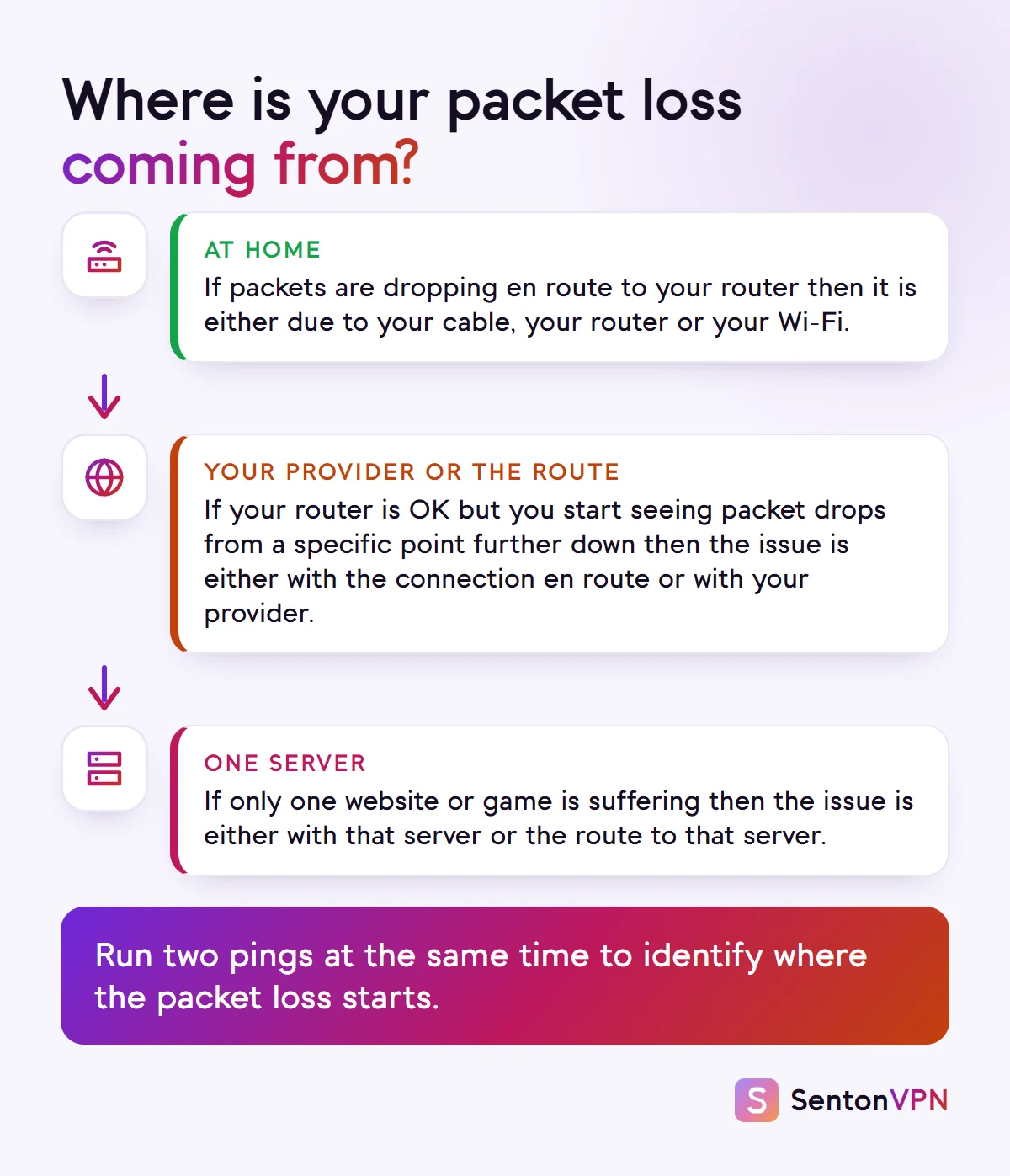
On 20 October 2026 we conducted a test from our Dubai home connection via 5 GHz Wi-Fi with a strong signal. A computer then sent one ping every second simultaneously to seven destinations: our router, Cloudflare's 1.1.1.1 server and test servers in Singapore, Mumbai, Frankfurt, London and Newark (USA). This generated approximately 3,600 pings to each destination.
Our router, Cloudflare, London, Frankfurt and Mumbai received all packets, and Newark missed just one of 3,600. Round trip times to those four servers were between 125 and 253 milliseconds. Approximately 4.4% of packets sent to Singapore did not get a response. Round trip times to Singapore were approximately 412 milliseconds.
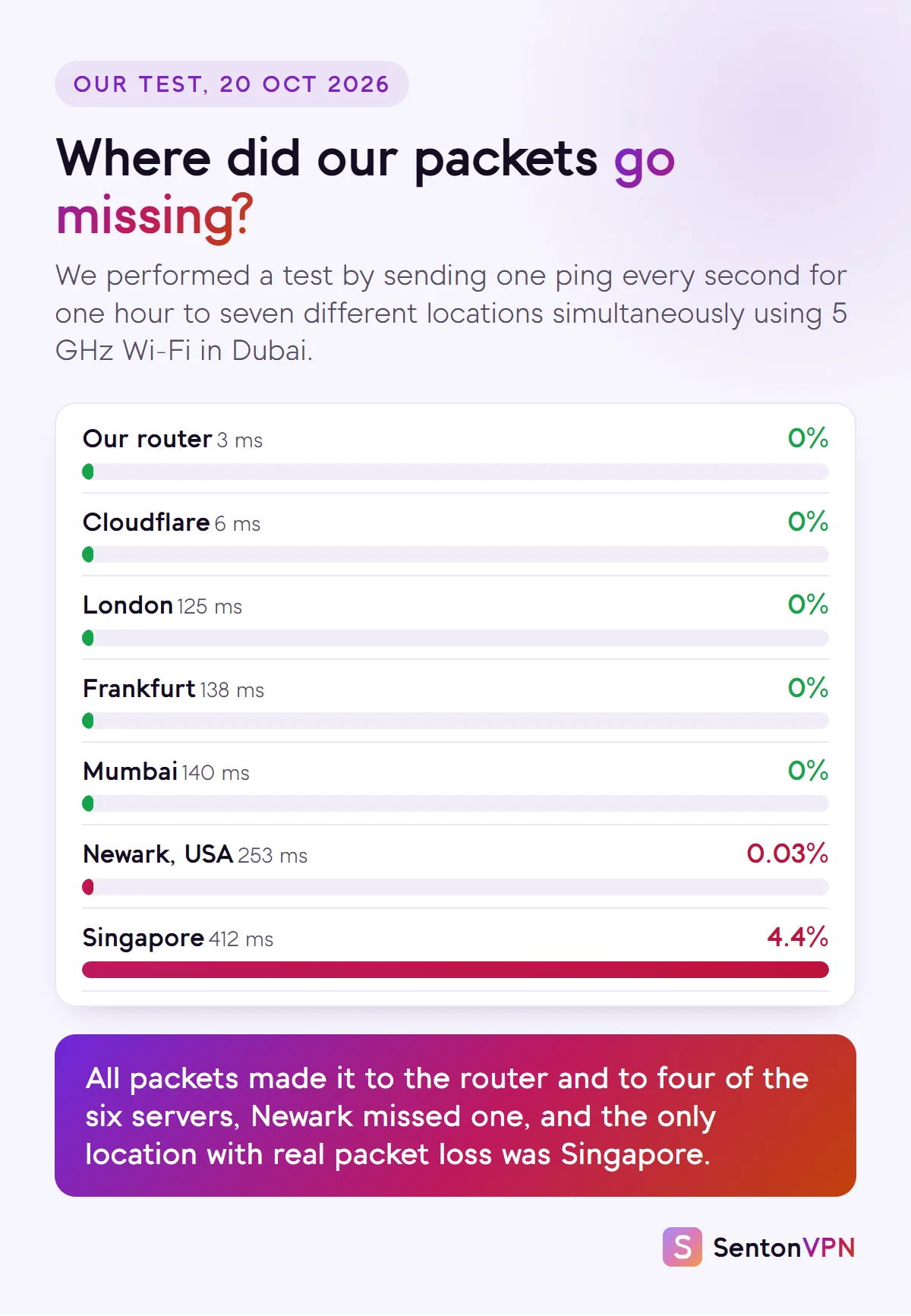
A traceroute explains this. Singapore is at a similar distance from Dubai as London is, but the route to Singapore was over three times slower than to London. This is because our packets travelled west before heading towards Singapore. Our packets passed via Amsterdam's internet exchange before Hong Kong and then finally Singapore. The packet loss was observed only on the long route described above, which an alternative route may avoid.
We also tested the maximum packet size supported on our connection. Any packet larger than 1,492 bytes that was marked as not permitted to be fragmented was rejected each time. This is slightly below the commonly used 1,500 bytes. Such a restriction can occur on many home connections. Packet size is therefore also important.
How to fix packet loss
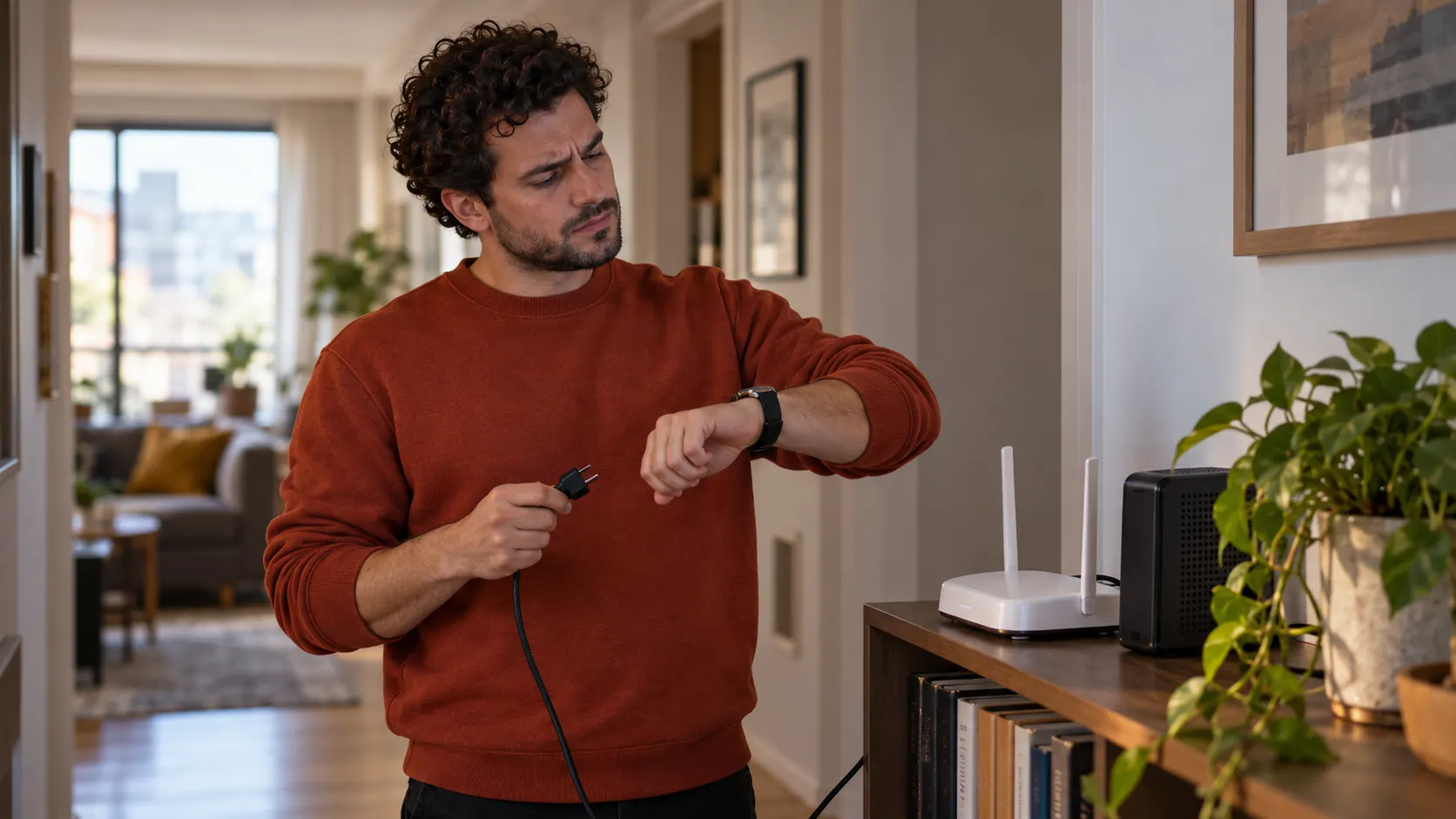 1RouterPower off0:30RestartingStep 1Restart your router and modemThe first thing to try is to switch off your modem and router, wait thirty seconds and turn them back on. This clears the queues and memory within your router and often resolves packet loss that may have been caused by accumulation over several days.
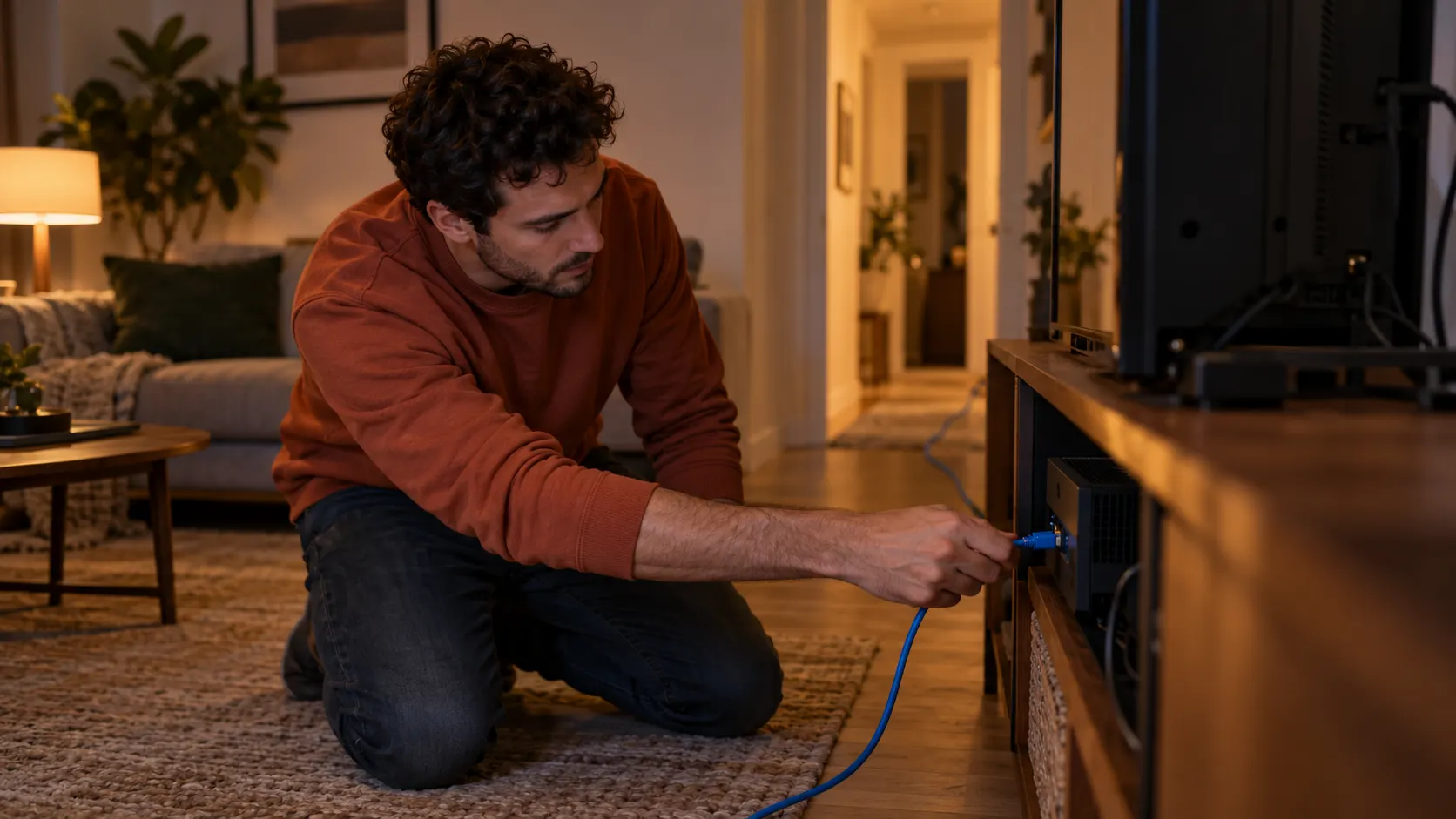 2Wi-FiEthernetConnectedStep 2Take Wi-Fi out of the pictureNext try disconnecting your Wi-Fi. Connect the game or computer directly to the router via cable. If you must use Wi-Fi try connecting to the 5 GHz network and also try getting closer to the router. If the packet loss resolves then the issue is with your Wi-Fi and not your internet connection.
 3Photo backupPausedGame firstStep 3Give your connection some roomNext try giving your connection some breathing space. Avoid large video uploads, large downloads or cloud backup whilst making calls or playing games. If your router supports quality of service or smart queuing then enable this and give calls and games priority.
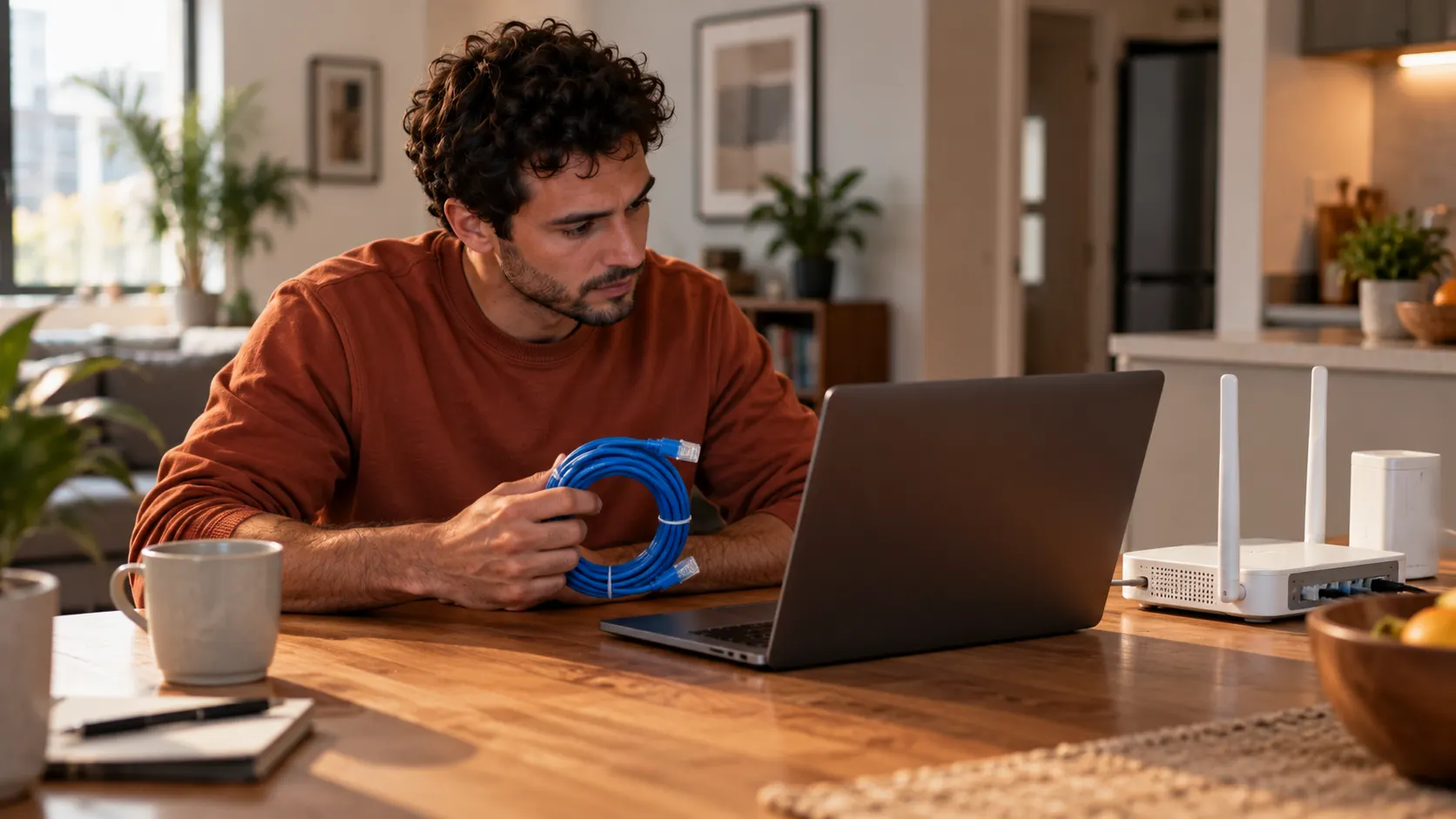 4Software updateUp to dateStep 4Update the router, drivers and cableNext update all components. Update your network driver on your computer and update the firmware on your router via the app or in the router settings. Try using a different port on the router and also try using a different cable. If you are using an old or kinked cable try replacing it with a new one.
 5
5 Senton VPNConnectedStep 5Test a different routeIf the packet loss occurs after your router then try using a different route. For example when using a VPN your traffic will first be sent to the server operated by the provider and then traverse the internet via a different route. Perform the ping test both with and without the VPN.
 6SupportPing log attachedSendStep 6Send your provider the evidenceFinally if all of the above does not resolve your issue then contact your internet service provider and provide evidence. Save your ping results including the time and date and also indicate when the packet loss occurs. Support is far more likely to respond quickly to data rather than a complaint that the internet is slow.
Can a VPN fix packet loss?
Only for one type of packet loss though. A VPN will not help with a bad server for a game, a faulty cable or poor Wi-Fi as these losses will happen before the packets enter the VPN or after they exit the VPN. A VPN will assist with the path though. Your packets travel through the VPN tunnel to the VPN server and continue from there. This means that your packets travel over the internet on a different path. If the packet loss is due to a poor or overloaded connection on the primary connection provided by your internet service provider or if your internet service provider is throttling certain types of traffic then this alternative path might help avoid this.
A VPN also introduces an additional hop and encryption which can cause a slight increase in your ping. For this reason Riot Games recommend turning off a VPN when troubleshooting and using one only to help test a player's path. Try both options and use the one that gives you the best results.
What is packet loss in gaming?
Games are where packet loss is noticed first. Fast paced games will send frequent small updates several times a second over UDP. When a packet is lost the game will have to estimate the position of other players and correct itself with the following update. This correction is the teleporting and rubber banding that many players describe. If you notice packet loss only in one game try checking the status of that game's servers before making any changes at home.
How Senton helps
- The role a VPN can play in an issue is altering the routing of your traffic around the internet. Using Senton, choose a server located in a country near the service or game you are playing or using and test your ping with Senton both on and off.
- Packet Size Optimization will tailor the packets transmitted over the VPN connection to the currently connected network. Oversized packets for the route in question can be retransmitted or split, but using an appropriate packet size will reduce the number of such operations that need to occur.
- Senton uses the modern, lightweight WireGuard VPN protocol, which communicates over UDP.
- The Android app provides coverage for the full Android phone or tablet. The Android TV app provides coverage for Android TV. The Chrome extension only covers traffic from the browser.
The bottom line
- Packet loss is the percentage of packets that fail to be received. Even 1 to 2% can cause issues with calls and games.
- Start diagnosing by testing both a server and your router at the same time.
- Most solutions can be found at home by updating firmware, using a quieter connection, using 5 GHz Wi-Fi or a cable, or restarting.
- If packet loss is occurring on a connection provided by your internet service provider then a VPN can be useful. Test both ways in this situation.